Showing posts with label datatables. Show all posts

Monday, 19 June 2023

Laravel 10 Tutorial: Ajax-based Date Range Filtering with Yajra DataTables

Introduction


In this Laravel 10 tutorial, we will explore how to implement an Ajax-based date range filtering feature using Yajra DataTables. Yajra DataTables is a powerful jQuery plugin that simplifies working with dynamic, interactive tables in Laravel applications. By combining it with Ajax and date range filtering, we can create a responsive and user-friendly data filtering mechanism.


Laravel 10 Tutorial: Ajax-based Date Range Filtering with Yajra DataTables


Below you can find step by step guide for implementing Ajax Date Range Filter in Laravel 10 Yajra DataTables.

  1. Download Laravel
  2. Install Yajra Datatable
  3. Make MySQL Database Connection
  4. Insert Sample Users Data
  5. Create Controller
  6. Create Views Blade File
  7. Set Route
  8. Run Laravel App

1 - Download Laravel


Before we begin, make sure you have Laravel 10 installed on your local or remote development environment. If you haven't installed it yet, so for install Laravel 10 framework, we have goes into directory where we want to download Laravel 10 Application and after this goes into terminal and run following command.


composer create-project laravel/laravel date_range_filter


This command will create date_range_filter and under this directory it will download Laravel 10 Application. And after this we have go navigate to this directory by run following command.


cd date_range_filter


2 - Install Yajra Datatable


To use Yajra DataTables in your Laravel project, you need to install the package. Open your terminal and navigate to your project's directory. Then, run the following command:


composer require yajra/laravel-datatables-oracle


This will install the Yajra DataTables package and its dependencies.

3 - Make MySQL Database Connection


Next we have to connect Laravel Application with MySQL database. So for this we have to open .env file and define following MySQL configuration for make MySQL database connection.


DB_CONNECTION=mysql
DB_HOST=127.0.0.1
DB_PORT=3306
DB_DATABASE=testing
DB_USERNAME=root
DB_PASSWORD=


So this command will make MySQL database with Laravel application. Next we have to make users table in MySQL database. So we have goes to terminal and run following command:


php artisan migrate


So this command will make necessary table in MySQL database with also create users table also.

4 - Insert Sample Users Data


For demonstration purposes, let's add some sample users data into users table. So we have goes to terminal and run following command:


php artisan tinker


This command will enable for write PHP code under terminal and for insert sample data in users table we have to write following code in terminal which will insert 40 users data into users table.


User::factory()->count(40)->create()


5 - Create Controller


Now, let's create a controller that will handle the data retrieval and filtering logic. In your terminal, run the following command to generate a new controller:


php artisan make:controller UserController


Open the app/Http/Controllers/UserController.php file and replace the index() method with the following code:

app/Http/Controllers/UserController.php

<?php

namespace App\Http\Controllers;

use Illuminate\Http\Request;

use App\Models\User;

use DataTables;

class UserController extends Controller
{
    public function index(Request $request)
    {
        if($request->ajax())
        {
            $data = User::select('*');

            if($request->filled('from_date') && $request->filled('to_date'))
            {
                $data = $data->whereBetween('created_at', [$request->from_date, $request->to_date]);
            }

            return DataTables::of($data)->addIndexColumn()->make(true);
        }
        return view('users');
    }
}


Save the changes and make sure to import the necessary namespaces at the top of the file.


6 - Create Views Blade File


We now need to create a view file that will display the DataTables table and the date range filter inputs. Create a new file called users.blade.php in the resources/views/ directory. Add the following code to the file:


<!DOCTYPE html>
<html>
<head>
    <title>Laravel 10 Datatables Date Range Filter</title>
    <meta name="csrf-token" content="{{ csrf_token() }}" />
    <link href="https://cdnjs.cloudflare.com/ajax/libs/twitter-bootstrap/5.0.1/css/bootstrap.min.css" rel="stylesheet">
    <link href="https://cdn.datatables.net/1.11.4/css/dataTables.bootstrap5.min.css" rel="stylesheet">
    <script src="https://code.jquery.com/jquery-3.5.1.js"></script>  
    <script src="https://cdnjs.cloudflare.com/ajax/libs/jquery-validate/1.19.0/jquery.validate.js"></script>
    <script src="https://cdn.datatables.net/1.11.4/js/jquery.dataTables.min.js"></script>
    <script src="https://cdn.jsdelivr.net/npm/bootstrap@5.0.2/dist/js/bootstrap.bundle.min.js" integrity="sha384-MrcW6ZMFYlzcLA8Nl+NtUVF0sA7MsXsP1UyJoMp4YLEuNSfAP+JcXn/tWtIaxVXM" crossorigin="anonymous"></script>
    <script src="https://cdn.datatables.net/1.11.4/js/dataTables.bootstrap5.min.js"></script>
    <script src="https://use.fontawesome.com/releases/v6.1.0/js/all.js" crossorigin="anonymous"></script>
    <script type="text/javascript" src="https://cdn.jsdelivr.net/momentjs/latest/moment.min.js"></script>
    <script type="text/javascript" src="https://cdn.jsdelivr.net/npm/daterangepicker/daterangepicker.min.js"></script>
    <link rel="stylesheet" type="text/css" href="https://cdn.jsdelivr.net/npm/daterangepicker/daterangepicker.css" />
</head>
<body>
       
    <div class="container">
        <h1 class="text-center text-success mt-5 mb-5"><b>Laravel 10 Datatables Date Range Filter</b></h1>
        <div class="card">
            <div class="card-header">
                <div class="row">
                    <div class="col col-9"><b>Sample Data</b></div>
                    <div class="col col-3">
                        <div id="daterange"  class="float-end" style="background: #fff; cursor: pointer; padding: 5px 10px; border: 1px solid #ccc; width: 100%; text-align:center">
                            <i class="fa fa-calendar"></i>&nbsp;
                            <span></span> 
                            <i class="fa fa-caret-down"></i>
                        </div>
                    </div>
                </div>
            </div>
            <div class="card-body">
                <table class="table table-bordered" id="daterange_table">
                    <thead>
                        <tr>
                            <th>No</th>
                            <th>Name</th>
                            <th>Email</th>
                            <th>Created On</th>
                        </tr>
                    </thead>
                    <tbody>
                    </tbody>
                </table>
            </div>
        </div>
    </div>
</body>
<script type="text/javascript">

$(function () {

    var start_date = moment().subtract(1, 'M');

    var end_date = moment();

    $('#daterange span').html(start_date.format('MMMM D, YYYY') + ' - ' + end_date.format('MMMM D, YYYY'));

    $('#daterange').daterangepicker({
        startDate : start_date,
        endDate : end_date
    }, function(start_date, end_date){
        $('#daterange span').html(start_date.format('MMMM D, YYYY') + ' - ' + end_date.format('MMMM D, YYYY'));

        table.draw();
    });

    var table = $('#daterange_table').DataTable({
        processing : true,
        serverSide : true,
        ajax : {
            url : "{{ route('users.index') }}",
            data : function(data){
                data.from_date = $('#daterange').data('daterangepicker').startDate.format('YYYY-MM-DD');
                data.to_date = $('#daterange').data('daterangepicker').endDate.format('YYYY-MM-DD');
            }
        },
        columns : [
            {data : 'id', name : 'id'},
            {data : 'name', name : 'name'},
            {data : 'email', name : 'email'},
            {data : 'created_at', name : 'created_at'}
        ]
    });

});

</script>
</html>


Make sure to include the necessary JavaScript and CSS files for DataTables and the date range picker.

7 - Set Route


Next, we need to define a route that will handle the Ajax requests for filtering. Open the routes/web.php file and add the following code:


<?php

use Illuminate\Support\Facades\Route;

use App\Http\Controllers\UserController;

/*
|--------------------------------------------------------------------------
| Web Routes
|--------------------------------------------------------------------------
|
| Here is where you can register web routes for your application. These
| routes are loaded by the RouteServiceProvider and all of them will
| be assigned to the "web" middleware group. Make something great!
|
*/

Route::get('/', function () {
    return view('welcome');
});


Route::get('users', [UserController::class, 'index'])->name('users.index');


8 - Run Laravel App


Finally, run your Laravel application by executing the following command in your terminal:


php artisan serve


Visit the URL provided, which is usually http://localhost:8000/users, to see the application in action. You should see a table of users along with a date range input. Selecting a date range will dynamically filter the users based on the chosen range.

Congratulations! You have successfully implemented an Ajax-based date range filtering feature with Yajra DataTables in Laravel 10.

Remember to customize the styling and further enhance the functionality as per your project's requirements.

Please note that you may need to install the required JavaScript libraries and CSS frameworks mentioned in the article before using them in your application.

I hope this comprehensive guide helps you. If you have any further questions, feel free to ask!

Monday, 5 October 2020

Show Hide jQuery DataTables Column with Server-side Processing with PHP Ajax


We have published many tutorial on jQuery DataTables with PHP Server-side processing using Ajax. But there are some viewers has requested us to publish tutorial on How can we show and hide jQuery DataTables columns with not loosing server-side process using Ajax with PHP. So for solve this problem, we have publish this tutorial, in which we will first load Mysql table dynamic data in jQuery DataTables plugin with server-side processing of searching, pagination of data using Ajax and then after we will make one select box with selection of multiple option with column name. So when we have select any column name name, then that column data will be hide from web page and when we have disselect any column name then that column data will be display on web page. So this show and hide column feature we will make for jQuery DataTable.

In this tutorial, for build show and hide DataTable column, we have use PHP script for backend operation and for front-end operation here we have use Ajax, jQuery DataTable plugin, Bootstrap library and Bootstrap select plugin. We can easily hide simple HTML table column by using CSS nth-child selector, but with DataTables it is not working properly. But if you search on DataTables site then it has already provide method for show or hide column. So by using that method we have make solution for dynamically show or hide jQuery DataTable column with PHP server-side processing using Ajax.

So here mainly we have use two main jQuery plugin for make show hide DataTable column tutorial, one is jQuery DataTable and another one is Bootstrap select plugin.

jQuery DataTable Plugin


jQuery DataTable plugin is a javascript library which has convert simple HTML table into multiple functional table with different feature like data search, pagination, sorting of data etc. This plugin has been used for load dynamic data in tabular format on web page. By using this plugin user can easily filter data and it will automatically make pagination without writing any line of code. So in this tutorial, we want to learn how to show or hide DataTable column dynamically.

Bootstrap Select Plugin


In this post we have use Bootstrap select plugin for select multiple column name for show or hide DataTable column dynamically. By using this plugin, we can convert simple select element into stylish select element with different feature like multi selection of option, search option text and much more. So here we want to make tutorial on show or hide multiple DataTable column dynamically, for this we have use this plugin under this tutorial for select multiple option at the same time for hide or show multiple DataTable column with server-side processing.


Here you can find complete source code for how to use Bootstrap select plugin with jQuery DataTable for make show or hide jQuery DataTable column dynamically. Here you can find how to load dynamic mysql table data in jQuery DataTable plugin and then after we will make simple select box and then after convert that select box into stylish select box by using Bootstrap select plugin. So when we have select column name then that column data will be hide from web page and when we have disselect selected column name then that column data will be visible on web page. So by using this feature we can display only that DataTable column data, which is required and we can hide othere unrequired DataTable column data from web page. Below you can find complete source code of show hide DataTable column data dynamically with server-side processing using PHP with Ajax.


Source Code


--
-- Database: `testing`
--

-- --------------------------------------------------------

--
-- Table structure for table `customer_table`
--

CREATE TABLE `customer_table` (
  `customer_id` int(11) NOT NULL,
  `customer_first_name` varchar(200) NOT NULL,
  `customer_last_name` varchar(200) NOT NULL,
  `customer_email` varchar(300) NOT NULL,
  `customer_gender` varchar(30) NOT NULL
) ENGINE=InnoDB DEFAULT CHARSET=latin1;

--
-- Indexes for dumped tables
--

--
-- Indexes for table `customer_table`
--
ALTER TABLE `customer_table`
  ADD PRIMARY KEY (`customer_id`);

--
-- AUTO_INCREMENT for dumped tables
--

--
-- AUTO_INCREMENT for table `customer_table`
--
ALTER TABLE `customer_table`
  MODIFY `customer_id` int(11) NOT NULL AUTO_INCREMENT;
COMMIT;


index.php


<html>
	<head>
		<title>How to Dynamically Display Hide DataTables Column with PHP Ajax</title>
		<!-- JS, Popper.js, and jQuery -->
		<script  src="https://code.jquery.com/jquery-3.5.1.js" integrity="sha256-QWo7LDvxbWT2tbbQ97B53yJnYU3WhH/C8ycbRAkjPDc=" crossorigin="anonymous"></script>
		<!-- CSS only -->
		<link rel="stylesheet" href="https://stackpath.bootstrapcdn.com/bootstrap/4.5.2/css/bootstrap.min.css" integrity="sha384-JcKb8q3iqJ61gNV9KGb8thSsNjpSL0n8PARn9HuZOnIxN0hoP+VmmDGMN5t9UJ0Z" crossorigin="anonymous">

		
		<script src="https://cdn.jsdelivr.net/npm/popper.js@1.16.1/dist/umd/popper.min.js" integrity="sha384-9/reFTGAW83EW2RDu2S0VKaIzap3H66lZH81PoYlFhbGU+6BZp6G7niu735Sk7lN" crossorigin="anonymous"></script>
		<script src="https://stackpath.bootstrapcdn.com/bootstrap/4.5.2/js/bootstrap.min.js" integrity="sha384-B4gt1jrGC7Jh4AgTPSdUtOBvfO8shuf57BaghqFfPlYxofvL8/KUEfYiJOMMV+rV" crossorigin="anonymous"></script>
		<script src="https://cdn.datatables.net/1.10.22/js/jquery.dataTables.min.js"></script>
		<script src="https://cdn.datatables.net/1.10.22/js/dataTables.bootstrap4.min.js"></script>  
		<link rel="stylesheet" href="https://cdn.datatables.net/1.10.22/css/dataTables.bootstrap4.min.css" />
		<link rel="stylesheet" href="https://cdn.jsdelivr.net/npm/bootstrap-select@1.13.14/dist/css/bootstrap-select.min.css">
  		<script src="https://cdn.jsdelivr.net/npm/bootstrap-select@1.13.14/dist/js/bootstrap-select.min.js"></script>
	</head>
	<body>
		<div class="container">
			<br />
			<h1 align="center" class="text-primary"><b>How to Dynamically Display Hide DataTables Column with PHP Ajax</b></h1>
			<br />
			<div class="card">
				<div class="card-header">
					<div class="row">
						<div class="col-lg-9">Sample Data</div>
						<div class="col-lg-3">
							<select name="column_name" id="column_name" class="form-control selectpicker" multiple>
								<option value="0">Customer ID</option>
						      	<option value="1">Customer First Name</option>
						      	<option value="2">Customer Last Name</option>
						      	<option value="3">Customer Email</option>
						      	<option value="4">Customer Gender</option>
							</select>
						</div>
					</div>
				</div>
				<div class="card-body">
					<div class="table-responsive">
						<table id="sample_data" class="table table-bordered table-striped">
							<thead>
								<tr>
									<th>Customer ID</th>
									<th>Customer First Name</th>
									<th>Customer Last Name</th>
									<th>Customer Email</th>
									<th>Customer Gender</th>
								</tr>
							</thead>
						</table>
					</div>
				</div>
			</div>
		</div>
		<br />
		<br />
	</body>
</html>

<script type="text/javascript" language="javascript">

$(document).ready(function(){
	
	var dataTable = $('#sample_data').DataTable({
		"processing" : true,
		"serverSide" : true,
		"order" : [],
		"ajax" : {
			url:"fetch.php",
			type:"POST"
		}
	});
	
	$('#column_name').selectpicker();

	$('#column_name').change(function(){

		var all_column = ["0", "1", "2", "3", "4"];

		var remove_column = $('#column_name').val();

		var remaining_column = all_column.filter(function(obj) { return remove_column.indexOf(obj) == -1; });

		dataTable.columns(remove_column).visible(false);

		dataTable.columns(remaining_column).visible(true);

	});

});	
</script>


fetch.php


<?php

//fetch.php

$connect = new PDO("mysql:host=localhost;dbname=testing", "root", "");

$column = array("customer_id", "customer_first_name", "customer_last_name", "customer_email", "customer_gender");

$query = "SELECT * FROM customer_table ";

if(isset($_POST["search"]["value"]))
{
	$query .= '
	WHERE customer_id LIKE "%'.$_POST["search"]["value"].'%" 
	OR customer_first_name LIKE "%'.$_POST["search"]["value"].'%" 
	OR customer_last_name LIKE "%'.$_POST["search"]["value"].'%" 
	OR customer_email LIKE "%'.$_POST["search"]["value"].'%" 
	OR customer_gender LIKE "%'.$_POST["search"]["value"].'%" 
	';
}

if(isset($_POST["order"]))
{
	$query .= 'ORDER BY '.$column[$_POST['order']['0']['column']].' '.$_POST['order']['0']['dir'].' ';
}
else
{
	$query .= 'ORDER BY customer_id DESC ';
}

$query1 = '';

if($_POST["length"] != -1)
{
	$query1 = 'LIMIT ' . $_POST['start'] . ', ' . $_POST['length'];
}

$statement = $connect->prepare($query);

$statement->execute();

$number_filter_row = $statement->rowCount();

$result = $connect->query($query . $query1);

$data = array();

foreach($result as $row)
{
	$sub_array = array();
	$sub_array[] = $row['customer_id'];
	$sub_array[] = $row['customer_first_name'];
	$sub_array[] = $row['customer_last_name'];
	$sub_array[] = $row['customer_email'];
	$sub_array[] = $row['customer_gender'];
	$data[] = $sub_array;
}

function count_all_data($connect)
{
	$query = "SELECT * FROM customer_table";

	$statement = $connect->prepare($query);

	$statement->execute();

	return $statement->rowCount();
}

$output = array(
	"draw"		=>	intval($_POST["draw"]),
	"recordsTotal"	=>	count_all_data($connect),
	"recordsFiltered"	=>	$number_filter_row,
	"data"	=>	$data
);

echo json_encode($output);

?>


Friday, 29 May 2020

Add CSV Excel Export Button in Laravel Yajra Datatable


This is one more post on Yajra Laravel Datatables package and in this post, we will learn How to add export buttons to Yajra Laravel Datatables package. If you are using Laravel framework as your web application development task. So, in Laravel framework if you want to use jQuery Datatable plugin for display data on web page in tabular format with searching of data, pagination and data sorting feature. For all those things you have to use Yajra Datatables package in Laravel framework. By using this package you can perform server-side processing of searching, sorting and pagination of data without writing any line of code.

So, If you want to export Yajra DataTable data in excel or csv file format, then you have to add csv and excel export button in your DataTable. In Laravel framework, Yajra Datatables package has provide DataTable Buttons plugin for add export button in your Laravel Datatable. After adding of export button, you can easily export your Laravel DataTable data to CSV file or Excel sheet file format without writing any line of code. So, If want to learn How to add export button in Yajra Laravel Datatable, then you have to follow below step. After following below steps you can easily integrate csv excel export button with your Yajra Laravel Datatable and you can simply export your datatable data in csv or excel file format.

  1. Download Latest Version of Laravel Framework
  2. Make MySql Database Connection
  3. Generate Fake Data
  4. Install Yajra DataTables Package
  5. Create DataTable Class
  6. Create Controller Class
  7. Create View Blade File
  8. Set Route
  9. Run Laravel Application


1 - Download Latest Version of Laravel Framework


First we have to download latest version of Laravel framework, So If you have use window OS then you have to go command prompt in which Composer application must be installed and then after write following command.


composer create-project --prefer-dist laravel/laravel export


This command will make export folder in define directory, download and install latest version of Laravel framework.

2 - Make MySql Database Connection


After downloading of Laravel framework, first want to make database connection. For this we have to open Laravel framework .env file and in that file we have to define Mysql database configuration.


DB_CONNECTION=mysql
DB_HOST=localhost
DB_PORT=3306
DB_DATABASE=testing
DB_USERNAME=root
DB_PASSWORD=


3 - Generate Fake Data


After making of Mysql Database connection, now we want to make table in mysql databaes connection and then after we want to fill that table with fake data. For this we have to follow following steps.

  • Create Model Class
  • Migrate Table Defination to Database
  • Create Factory Class
  • Create Seed Class

Create Model Class


Here we will use Model class for perform database related operation. For this, we have to create model class file. For this we have to go command prompt and write following command.


php artisan make:model Export -m


This command will make Export.php model class file in app folder. In this file we have to define table column name which you can find below.

app/Export.php

<?php

namespace App;

use Illuminate\Database\Eloquent\Model;

class Export extends Model
{
    protected $fillable = ['firstName', 'lastName'];
}


Migrate Table Defination to Database


When we have create model class, then at that time that model class migration table file has been created in database/migrations folder. In that file, we have to define table column defination which you can seen below.


<?php

use Illuminate\Database\Migrations\Migration;
use Illuminate\Database\Schema\Blueprint;
use Illuminate\Support\Facades\Schema;

class CreateExportsTable extends Migration
{
    /**
     * Run the migrations.
     *
     * @return void
     */
    public function up()
    {
        Schema::create('exports', function (Blueprint $table) {
            $table->id();
            $table->string('firstName');
            $table->string('lastName');
            $table->timestamps();
        });
    }

    /**
     * Reverse the migrations.
     *
     * @return void
     */
    public function down()
    {
        Schema::dropIfExists('exports');
    }
}


After define table defination, now we want to migrate this table defination to mysql database and create exports table. For this we have go to command prompt and write following command.


php artisan migrate


Above command will make exports table in Mysql database. So, this way we can create table in mysql database from Laravel our laravel application.

Create Factory Class


For generate fake data and fill mysql exports table with fill data, we have to create one factory class. This class will allowed you to build fake data for your modelds. For create model factories, we have to go command prompt and write following command.


php artisan make:factory ExportFactory


This command will create model factories with name ExportFactory.php in database/factories folder. In this file, first we have import our model class and then after we have to define in which mysql table column we have to define fake data column name which can find below.

database/factories/ExportFactory.php

<?php

/** @var \Illuminate\Database\Eloquent\Factory $factory */

use App\Model;
use Faker\Generator as Faker;
use App\Export;

$factory->define(App\Export::class, function (Faker $faker) {
    return [
        'firstName'  => $faker->firstName,
        'lastName'  => $faker->lastName
    ];
});


Create Seed Class


In Laravel Seed classes is used for seeding your database with test data. In Laravel framework all seed classes has been store in database/seeds folder. For create seed class, we have to command prompt and write following command.


php artisan make:seeder ExportTableSeeder


This command will create ExportTableSeeder.php seed class in database/seeds directory. In this class first we want to import our model class then after in this class you can find run() and under this method we can define how many number of fake data has been genrated by using model factory class. You can find source below it.

database/seeds/ExportTableSeeder.php

<?php

use Illuminate\Database\Seeder;
use App\Export;

class ExportTableSeeder extends Seeder
{
    /**
     * Run the database seeds.
     *
     * @return void
     */
    public function run()
    {
        $count = 500;
        factory(Export::class, $count)->create();

    }
}


After this we have to open database/seeds/DatabaseSeeder.php file which is already created under this database/seeds directory. So we have to open this file and under this file we can find run() method and under that method we have to called ExportTableSeeder class.

database/seeds/DatabaseSeeder.php

<?php

use Illuminate\Database\Seeder;

class DatabaseSeeder extends Seeder
{
    /**
     * Seed the application's database.
     *
     * @return void
     */
    public function run()
    {
        // $this->call(UserSeeder::class);
        $this->call(ExportTableSeeder::class);
    }
}


After this for generate fake data, we have to go command prompt and write following command.


composer dump-autoload


This command will regenerates the list of all classed which we have included in this Laravel project. Running of this command is required for generate fake data. And lastly for generate fake data we have to run following command.


php artisan db:seed


This command will seed your test data and it will fill exports mysql table with fake data. So, this is complete step by step process for creating fake data in Laravel framework.


4 - Install Yajra DataTables Package & DataTables Buttons plugin


Here we have use Yajra Datatables package has been used for load data in jQuery Datatable plugin in Laravel framework. For use Yajra Datatable package, we have to install in Laravel framework. For this we have go to command prompt and write following command.


composer require yajra/laravel-datatables-oracle


This command will download and install in latest version of Yajra DataTable package in Laravel framework. Here we want to add export button in Yajra Laravel Datatable, for this we have to download and intall Datatable Button plugin. For this we have to go command prompt and write followng command.


composer require yajra/laravel-datatables-buttons


This command will download and install DataTables Button plugin of Yajra Datatable package. By using this plugin we can add export button Yajra DataTables for export data for Datatable. Now we want to yajra datatable package service in Laravel framework. For this we have to open config/app.php file and under this file in provider array we have to define this two package service, which you can see below.

config/app.php

<?php

return [

    'providers' => [
      
     ---------------
        
        Yajra\DataTables\DataTablesServiceProvider::class,
        Yajra\DataTables\ButtonsServiceProvider::class,

      ---------------

    ],
];


After defining of service, now we want to publish DataTable Button service, for this we have go to command prompt and write following command.


php artisan vendor:publish --tag=datatables-buttons


This command will publish datatables buttons plugin service in Laravel. Now we can use datatables buttons in Laravel framework for add export button Datatable.

5 - Create DataTable Class


In this tutorial, we will use DataTable class for load data in jQuery Datatable plugin and add export button in DataTable for export data in CSV or Excel file. For this we have to create DataTable class, for this we have go to command prompt and write following command.


php artisan datatables:make ExportDataTable


This command will make DataTables/ExportDataTable.php class file in app directory. So, we have to open this file, and in this class file we have to import model class. In this class file, we can see following method.

dataTable($query) - This method will build DataTable class.
query(ExportDataTable $model) - This method is used for get the query source of DataTable. In this method we have define data fetch query.
html() - This method will build your html code and Ajax jQuery script for initialize jQuery Datatable plugin. In this method we can define which export button you want to add in Datatable.
getColumns() - In this method we have to define Mysql table column name.
filename() - This method is used for get the file name for export.

app/DataTables/ExportDataTable.php

<?php

namespace App\DataTables;

use App\Export;
use App\DataTables\ExportDataTable;
use Yajra\DataTables\Html\Button;
use Yajra\DataTables\Html\Column;
use Yajra\DataTables\Html\Editor\Editor;
use Yajra\DataTables\Html\Editor\Fields;
use Yajra\DataTables\Services\DataTable;

class ExportDataTable extends DataTable
{
    /**
     * Build DataTable class.
     *
     * @param mixed $query Results from query() method.
     * @return \Yajra\DataTables\DataTableAbstract
     */
    public function dataTable($query)
    {
        return datatables()
            ->eloquent($query);
    }

    /**
     * Get query source of dataTable.
     *
     * @param \App\ExportDataTable $model
     * @return \Illuminate\Database\Eloquent\Builder
     */
    public function query(ExportDataTable $model)
    {
        //return $model->newQuery();
        $data = Export::select();
        return $this->applyScopes($data);
    }

    /**
     * Optional method if you want to use html builder.
     *
     * @return \Yajra\DataTables\Html\Builder
     */
    public function html()
    {
        return $this->builder()
                    ->columns($this->getColumns())
                    ->minifiedAjax()
                    ->dom('Bfrtip')
                    ->orderBy(1)
                    ->buttons(
                        Button::make('csv'),
                        Button::make('excel')
                    );
    }

    /**
     * Get columns.
     *
     * @return array
     */
    protected function getColumns()
    {
        return [
            Column::make('id'),
            Column::make('firstName'),
            Column::make('lastName'),
            Column::make('created_at'),
            Column::make('updated_at'),
        ];
    }

    /**
     * Get filename for export.
     *
     * @return string
     */
    protected function filename()
    {
        return 'Export_' . date('YmdHis');
    }
}


6 - Create Controller Class


In Laravel framework for handle http request, we have to ceate Controller class. In Laravel framework controller class file has been store in app/Http/Controllers follder. For create controller class file, we have to go command prompt and write following command.


php artisan make:controller ExportController


This command will create ExportController.php controller class file. In this file, first we want to import ExportDataTable.php class and then after we have to make index method which will render ExportDataTable class data and load in export.blade.php view file.

app/Http/Controllers/ExportController.php

<?php

namespace App\Http\Controllers;

use Illuminate\Http\Request;
use App\DataTables\ExportDataTable;

class ExportController extends Controller
{
    public function index(ExportDataTable $dataTable)
    {
     return $dataTable->render('export');
    }
}


7 - Create View Blade File


For display output in Laravel framework, it has been used blade templating engine for display HTML output in browser. In Laravel framework view files has been store in resources/views folder. In this directory we have already create export.blade.php file. This file will display Mysql table data in DataTable by using Yajra Datatable package. And with data you can also find export csv or excel button also.

resources/views/export.blade.php

<html>
  <head>
    <meta name="viewport" content="width=device-width, initial-scale=1">
    <title>Add CSV Excel Export Button in Yajra Laravel Datatable</title>
    <script src="https://ajax.googleapis.com/ajax/libs/jquery/2.2.0/jquery.min.js"></script>
    <link rel="stylesheet" href="https://maxcdn.bootstrapcdn.com/bootstrap/3.3.6/css/bootstrap.min.css" />
    <script src="https://cdn.datatables.net/1.10.12/js/jquery.dataTables.min.js"></script>
    <script src="https://cdn.datatables.net/1.10.12/js/dataTables.bootstrap.min.js"></script>  
    <link rel="stylesheet" href="https://cdn.datatables.net/1.10.12/css/dataTables.bootstrap.min.css" />
    <script src="https://maxcdn.bootstrapcdn.com/bootstrap/3.3.6/js/bootstrap.min.js"></script>
    <link rel="stylesheet" href="https://cdn.datatables.net/buttons/1.0.3/css/buttons.dataTables.min.css">
    <script src="https://cdn.datatables.net/buttons/1.0.3/js/dataTables.buttons.min.js"></script>
    <script src="{{ asset('vendor/datatables/buttons.server-side.js') }}"></script>
  </head>
  <body>
    <div class="container">    
      <br />
      <h3 align="center">Add CSV Excel Export Button in Yajra Laravel Datatable</h3>
      <br />
      <div class="table-responsive">
        <div class="panel panel-default">
          <div class="panel-heading">Sample Data</div>
          <div class="panel-body">
            
            {!! $dataTable->table() !!}

            {!! $dataTable->scripts() !!}
          </div>
        </div>        
      </div>
      <br />
      <br />
    </div>
  </body>
</html>


8 - Set Route


In next we want to set the route of controller class method. For set route we have to open routes/web.php file and in this file we have to define route which you can find below.

routes/web.php


Route::resource('export', 'ExportController');


9 - Run Laravel Application


Now all set and we are ready to check output in browser. But before check output in browser, we have to first start Laravel application server. For this we have go to command prompt and write following command.


php artisan serve


This command will start Laravel server and provide base url of Laravel application. For test above code we have to write following url.


http://127.0.0.1:8000/export


So this is step by step processing of How to add export button in Laravel Yajra DataTable package. In this tutorial, we have first learn How to generate fake data in Laravel and then after we have seen how to load data in Datatable in Laravel framework by using Yajra Datatable package and then after we have seen how can we export Yajra DataTable data in CSV or Excel file format by using Yajra DataTable buttons plugin. So If you have found this tutorial helpful to you then do not forget to share it.

Wednesday, 31 July 2019

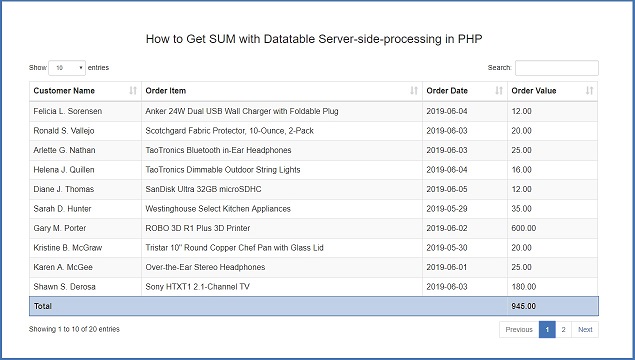
How to Calculate Total of Column in Datatable using PHP with Ajax


Hi, If you have use jQuery Datatable plugin for display your dynamic data in tabular format on web page, then there are some you have to required to display total of column in footer of Datatable. So, at that time you have one question arise in your mind how to get SUM or total of column in Datatable with Server-side processing by using PHP script and Ajax. In this post, we you can find the solution of Datatable server-side processing for get the total or SUM of column data and display on web page by using PHP Ajax and jQuery. You can do this things on Client Side processing by using different callback function which has been used for manipulated header data of Datatable And by using these type of callback function you have to do various modification for display dynamic total of column.

But here we will use Datatable Server-side processing for make column sum or total. In Server-side processing of data, we will calculate the total of column at server side php script and by using jQuery and Ajax request we will display total or sum of column in footer of Datatable. In Datatable tag has been used for display content of header, tag has been used for display data which has been get from Ajax request in json format and for display DataTable footer content, here we have use tag. This tag has been used for display footer content. So, here also we will display total or sum of column will be display under tag. Below you can find Source code of Column Sum in DataTable by using Server-side processing with PHP Ajax and jQuery.


index.php


This is the main file of this tutorial. In this file we have use javascript library jquery, Bootstrap library and jQuery DataTable library. Under this page we have create on table with id="order_data". We will initialize jQuery Datatable on table by using id attribute value. For display total or sum of column in footer table column, and in that column we have define one id="total_order". We will display sum or column total under this column by using jQuery code.

Under this file you can also finde jquery code for initialize jQuery DataTable plugin. In jquery Code you can see for fetch dynamic data, we have use Ajax request which has send to fetch.php file. For display Sum or total of column we have used drawCallback function. This function has received data from Ajax request, which we can access by using json variable. Below you can find source code of this file below.


<html>
 <head>
  <title>How to Get SUM with Datatable Server-side-processing in PHP</title>
  <script src="https://ajax.googleapis.com/ajax/libs/jquery/2.2.0/jquery.min.js"></script>
  <link rel="stylesheet" href="https://maxcdn.bootstrapcdn.com/bootstrap/3.3.6/css/bootstrap.min.css" />
  <script src="https://cdn.datatables.net/1.10.12/js/jquery.dataTables.min.js"></script>
  <script src="https://cdn.datatables.net/1.10.12/js/dataTables.bootstrap.min.js"></script>  
  <link rel="stylesheet" href="https://cdn.datatables.net/1.10.12/css/dataTables.bootstrap.min.css" />
  <script src="https://maxcdn.bootstrapcdn.com/bootstrap/3.3.6/js/bootstrap.min.js"></script>
 </head>
 <body>
  <div class="container box">
   <h3 align="center">How to Get SUM with Datatable Server-side-processing in PHP</h3>
   <br />
   <div class="table-responsive">
    <table id="order_data" class="table table-bordered table-striped">
     <thead>
      <tr>
       <th>Customer Name</th>
       <th>Order Item</th>
       <th>Order Date</th>
       <th>Order Value</th>
      </tr>
     </thead>
     <tbody></tbody>
     <tfoot>
      <tr>
       <th colspan="3">Total</th>
       <th id="total_order"></th>
      </tr>
     </tfoot>
    </table>
    <br />
    <br />
    <br />
   </div>
  </div>
 </body>
</html>

<script type="text/javascript" language="javascript" >
 $(document).ready(function(){
  
   var dataTable = $('#order_data').DataTable({
    "processing" : true,
    "serverSide" : true,
    "order" : [],
    "ajax" : {
     url:"fetch.php",
     type:"POST"
    },
    drawCallback:function(settings)
    {
     $('#total_order').html(settings.json.total);
    }
   });


 });
 
</script>


fetch.php


This file has receive Ajax request for fetch data from order table. In this file first we have make database connection. After making database connection we have define table column for sorting. Under this file we have make select data query for fetch data from mysql table. Here we have divide select in two part, first part query is for get number of fitered row and whole query will be used for fetch filter data from mysql database. Here we have also calculate the total of order_value table column data. For send column total data to Ajax request, here we have add total key in array which has been send to Ajax request in json data by using json_encode() function. Below you can find source code of this file.


<?php

//fetch.php

$connect = new PDO("mysql:host=localhost;dbname=testing", "root", "");

$column = array('order_customer_name', 'order_item', 'order_date', 'order_value');

$query = '
SELECT * FROM tbl_order 
WHERE order_customer_name LIKE "%'.$_POST["search"]["value"].'%" 
OR order_item LIKE "%'.$_POST["search"]["value"].'%" 
OR order_date LIKE "%'.$_POST["search"]["value"].'%" 
OR order_value LIKE "%'.$_POST["search"]["value"].'%" 

';

if(isset($_POST["order"]))
{
 $query .= 'ORDER BY '.$column[$_POST['order']['0']['column']].' '.$_POST['order']['0']['dir'].' ';
}
else
{
 $query .= 'ORDER BY order_id DESC ';
}

$query1 = '';

if($_POST["length"] != -1)
{
 $query1 = 'LIMIT ' . $_POST['start'] . ', ' . $_POST['length'];
}

$statement = $connect->prepare($query);

$statement->execute();

$number_filter_row = $statement->rowCount();

$statement = $connect->prepare($query . $query1);

$statement->execute();

$result = $statement->fetchAll();

$data = array();

$total_order = 0;

foreach($result as $row)
{
 $sub_array = array();
 $sub_array[] = $row["order_customer_name"];
 $sub_array[] = $row["order_item"];
 $sub_array[] = $row["order_date"];
 $sub_array[] = $row["order_value"];

 $total_order = $total_order + floatval($row["order_value"]);
 $data[] = $sub_array;
}

function count_all_data($connect)
{
 $query = "SELECT * FROM tbl_order";
 $statement = $connect->prepare($query);
 $statement->execute();
 return $statement->rowCount();
}

$output = array(
 'draw'    => intval($_POST["draw"]),
 'recordsTotal'  => count_all_data($connect),
 'recordsFiltered' => $number_filter_row,
 'data'    => $data,
 'total'    => number_format($total_order, 2)
);

echo json_encode($output);


?>


This is one more post on DataTable and here we have discuss how to display Sum or Total of column in DataTable Footer by using Server-side processing with PHP Script, Ajax and jQuery.

Wednesday, 19 September 2018

Add Server-side DataTables Custom Filter using PHP with Ajax


jQuery Datatables when initialized on the HTML table it has automatically make certain valuable feature like data pagination, table column sorting, search all table column data from single textbox, display number of records per page functionality without writing of any line of code or script. So, here we have to discuss how can we remove default DataTables search textbox and make custom serach of filter DataTables data using PHP script with Ajax. Because Default Search box is used for search records of all table column and display on Datatables. But in Web Development, Sometimes we want to required custom search filter for get specific column search onlu not whole table column search. For this in this tutorial, We will learn how can we implement custom search filter into jQuery DataTables by using Ajax with PHP script.

jQuery Datatables Customer Search filter with Server side processing help us to get records based on our choices of data filter. For example from the list of data we want to just filter "Male" gender data only. So we have search search in textbox then it will return female data also. For this we have to required custom search filter in Datatables for increase efficiency of exact search of data. We can implement custom search by using HTML Select box or even textbox also for filter jQuery Datatables data.


Database


--
-- Database: `testing`
--

-- --------------------------------------------------------

--
-- Table structure for table `tbl_customer`
--

CREATE TABLE `tbl_customer` (
  `CustomerID` int(11) NOT NULL,
  `CustomerName` varchar(250) NOT NULL,
  `Gender` varchar(30) NOT NULL,
  `Address` text NOT NULL,
  `City` varchar(250) NOT NULL,
  `PostalCode` varchar(30) NOT NULL,
  `Country` varchar(100) NOT NULL
) ENGINE=MyISAM DEFAULT CHARSET=latin1;

--
-- Dumping data for table `tbl_customer`
--

INSERT INTO `tbl_customer` (`CustomerID`, `CustomerName`, `Gender`, `Address`, `City`, `PostalCode`, `Country`) VALUES
(1, 'Maria Anders', 'Female', 'Obere Str. 57', 'Berlin', '12209', 'Germany'),
(2, 'Ana Trujillo', 'Female', 'Avda. de la Construction 2222', 'Mexico D.F.', '5021', 'Mexico'),
(3, 'Antonio Moreno', 'Male', 'Mataderos 2312', 'Mexico D.F.', '5023', 'Mexico'),
(4, 'Thomas Hardy', 'Male', '120 Hanover Sq.', 'London', 'WA1 1DP', 'United Kingdom'),
(5, 'Paula Parente', 'Female', 'Rua do Mercado, 12', 'Resende', '08737-363', 'Brazil'),
(6, 'Wolski Zbyszek', 'Male', 'ul. Filtrowa 68', 'Walla', '01-012', 'Poland'),
(7, 'Matti Karttunen', 'Male', 'Keskuskatu 45', 'Helsinki', '21240', 'Finland'),
(8, 'Karl Jablonski', 'Male', '305 - 14th Ave. S. Suite 3B', 'Seattle', '98128', 'United States'),
(9, 'Paula Parente', 'Female', 'Rua do Mercado, 12', 'Resende', '08737-363', 'Brazil'),
(10, 'John Koskitalo', 'Male', 'Torikatu 38', 'Oulu', '90110', 'Finland'),
(39, 'Ann Devon', 'Female', '35 King George', 'London', 'WX3 6FW', 'United Kingdom'),
(38, 'Janine Labrune', 'Female', '67, rue des Cinquante Otages', 'Nantes', '44000', 'Finland'),
(37, 'Kathryn Segal', 'Female', 'Augsburger Strabe 40', 'Ludenscheid Gevelndorf', '58513', 'Germany'),
(36, 'Elizabeth Brown', 'Female', 'Berkeley Gardens 12 Brewery', 'London', 'WX1 6LT', 'United Kingdom'),
(30, 'Trina Davidson', 'Female', '1049 Lockhart Drive', 'Barrie', 'ON L4M 3B1', 'Canada'),
(31, 'Jeff Putnam', 'Male', 'Industrieweg 56', 'Bouvignies', '7803', 'Belgium'),
(32, 'Joyce Rosenberry', 'Female', 'Norra Esplanaden 56', 'HELSINKI', '380', 'Finland'),
(33, 'Ronald Bowne', 'Male', '2343 Shadowmar Drive', 'New Orleans', '70112', 'United States'),
(34, 'Justin Adams', 'Male', '45, rue de Lille', 'ARMENTIERES', '59280', 'France'),
(35, 'Pedro Afonso', 'Male', 'Av. dos Lusiadas, 23', 'Sao Paulo', '05432-043', 'Brazil'),
(100, 'Kathryn Segal', 'Female', 'Augsburger Strabe 40', 'Ludenscheid Gevelndorf', '58513', 'Germany'),
(101, 'Tonia Sayre', 'Female', '84 Haslemere Road', 'ECHT', 'AB32 2DY', 'United Kingdom'),
(102, 'Loretta Harris', 'Female', 'Avenida Boavista 71', 'SANTO AMARO', '4920-111', 'Portugal'),
(103, 'Sean Wong', 'Male', 'Rua Vito Bovino, 240', 'Sao Paulo-SP', '04677-002', 'Brazil'),
(104, 'Frederick Sears', 'Male', 'ul. Marysiuska 64', 'Warszawa', '04-617', 'Poland'),
(105, 'Tammy Cantrell', 'Female', 'Lukiokatu 34', 'HAMEENLINNA', '13250', 'Finland'),
(106, 'Megan Kennedy', 'Female', '1210 Post Farm Road', 'Norcross', '30071', 'United States'),
(107, 'Maria Whittaker', 'Female', 'Spresstrasse 62', 'Bielefeld Milse', '33729', 'Germany'),
(108, 'Dorothy Parker', 'Female', '32 Lairg Road', 'NEWCHURCH', 'HR5 5DR', 'United Kingdom'),
(109, 'Roger Rudolph', 'Male', 'Avenida Julio Saul Dias 78', 'PENAFIEL', '4560-470', 'Portugal'),
(110, 'Karen Metivier', 'Female', 'Rua Guimaraes Passos, 556', 'Sao Luis-MA', '65025-450', 'Brazil'),
(111, 'Charles Hoover', 'Male', 'Al. Tysiaclecia 98', 'Warszawa', '03-851', 'Poland'),
(112, 'Becky Moss', 'Female', 'Laivurinkatu 6', 'MIKKELI', '50120', 'Finland'),
(113, 'Frank Kidd', 'Male', '2491 Carson Street', 'Cincinnati', 'KY 45202', 'United States'),
(114, 'Donna Wilson', 'Female', 'Hallesches Ufer 69', 'Dettingen', '73265', 'Germany'),
(115, 'Lillian Roberson', 'Female', '36 Iolaire Road', 'NEW BARN', 'DA3 3FT', 'United Kingdom');

--
-- Indexes for dumped tables
--

--
-- Indexes for table `tbl_customer`
--
ALTER TABLE `tbl_customer`
  ADD PRIMARY KEY (`CustomerID`);

--
-- AUTO_INCREMENT for dumped tables
--

--
-- AUTO_INCREMENT for table `tbl_customer`
--
ALTER TABLE `tbl_customer`
  MODIFY `CustomerID` int(11) NOT NULL AUTO_INCREMENT, AUTO_INCREMENT=116;


database_connection.php


<?php

//database_connection.php

$connect = new PDO("mysql:host=localhost;dbname=testing", "root", "");

?>


index.php


<?php

include('database_connection.php');

$country = '';
$query = "SELECT DISTINCT Country FROM tbl_customer ORDER BY Country ASC";
$statement = $connect->prepare($query);
$statement->execute();
$result = $statement->fetchAll();
foreach($result as $row)
{
 $country .= '<option value="'.$row['Country'].'">'.$row['Country'].'</option>';
}

?>

<html>
 <head>
  <title>Custom Search in jQuery Datatables using PHP Ajax</title>
  <script src="https://ajax.googleapis.com/ajax/libs/jquery/2.2.0/jquery.min.js"></script>
  <link rel="stylesheet" href="https://maxcdn.bootstrapcdn.com/bootstrap/3.3.6/css/bootstrap.min.css" />
  <script src="https://cdn.datatables.net/1.10.12/js/jquery.dataTables.min.js"></script>
  <script src="https://cdn.datatables.net/1.10.12/js/dataTables.bootstrap.min.js"></script>  
  <link rel="stylesheet" href="https://cdn.datatables.net/1.10.12/css/dataTables.bootstrap.min.css" />
  <script src="https://maxcdn.bootstrapcdn.com/bootstrap/3.3.6/js/bootstrap.min.js"></script>
  
 </head>
 <body>
  <div class="container box">
   <h3 align="center">Custom Search in jQuery Datatables using PHP Ajax</h3>
   <br />
   <div class="row">
    <div class="col-md-4"></div>
    <div class="col-md-4">
     <div class="form-group">
      <select name="filter_gender" id="filter_gender" class="form-control" required>
       <option value="">Select Gender</option>
       <option value="Male">Male</option>
       <option value="Female">Female</option>
      </select>
     </div>
     <div class="form-group">
      <select name="filter_country" id="filter_country" class="form-control" required>
       <option value="">Select Country</option>
       <?php echo $country; ?>
      </select>
     </div>
     <div class="form-group" align="center">
      <button type="button" name="filter" id="filter" class="btn btn-info">Filter</button>
     </div>
    </div>
    <div class="col-md-4"></div>
   </div>
   <div class="table-responsive">
    <table id="customer_data" class="table table-bordered table-striped">
     <thead>
      <tr>
       <th width="20%">Customer Name</th>
       <th width="10%">Gender</th>
       <th width="25%">Address</th>
       <th width="15%">City</th>
       <th width="15%">Postal Code</th>
       <th width="15%">Country</th>
      </tr>
     </thead>
    </table>
    <br />
    <br />
    <br />
   </div>
  </div>
 </body>
</html>

<script type="text/javascript" language="javascript" >
 $(document).ready(function(){
  
  fill_datatable();
  
  function fill_datatable(filter_gender = '', filter_country = '')
  {
   var dataTable = $('#customer_data').DataTable({
    "processing" : true,
    "serverSide" : true,
    "order" : [],
    "searching" : false,
    "ajax" : {
     url:"fetch.php",
     type:"POST",
     data:{
      filter_gender:filter_gender, filter_country:filter_country
     }
    }
   });
  }
  
  $('#filter').click(function(){
   var filter_gender = $('#filter_gender').val();
   var filter_country = $('#filter_country').val();
   if(filter_gender != '' && filter_country != '')
   {
    $('#customer_data').DataTable().destroy();
    fill_datatable(filter_gender, filter_country);
   }
   else
   {
    alert('Select Both filter option');
    $('#customer_data').DataTable().destroy();
    fill_datatable();
   }
  });
  
  
 });
 
</script>


fetch.php


<?php

include('database_connection.php');

$column = array('CustomerName', 'Gender', 'Address', 'City', 'PostalCode', 'Country');

$query = "
SELECT * FROM tbl_customer 
";

if(isset($_POST['filter_gender'], $_POST['filter_country']) && $_POST['filter_gender'] != '' && $_POST['filter_country'] != '')
{
 $query .= '
 WHERE Gender = "'.$_POST['filter_gender'].'" AND Country = "'.$_POST['filter_country'].'" 
 ';
}

if(isset($_POST['order']))
{
 $query .= 'ORDER BY '.$column[$_POST['order']['0']['column']].' '.$_POST['order']['0']['dir'].' ';
}
else
{
 $query .= 'ORDER BY CustomerID DESC ';
}

$query1 = '';

if($_POST["length"] != -1)
{
 $query1 = 'LIMIT ' . $_POST['start'] . ', ' . $_POST['length'];
}

$statement = $connect->prepare($query);

$statement->execute();

$number_filter_row = $statement->rowCount();

$statement = $connect->prepare($query . $query1);

$statement->execute();

$result = $statement->fetchAll();


$data = array();

foreach($result as $row)
{
 $sub_array = array();
 $sub_array[] = $row['CustomerName'];
 $sub_array[] = $row['Gender'];
 $sub_array[] = $row['Address'];
 $sub_array[] = $row['City'];
 $sub_array[] = $row['PostalCode'];
 $sub_array[] = $row['Country'];
 $data[] = $sub_array;
}

function count_all_data($connect)
{
 $query = "SELECT * FROM tbl_customer";
 $statement = $connect->prepare($query);
 $statement->execute();
 return $statement->rowCount();
}

$output = array(
 "draw"       =>  intval($_POST["draw"]),
 "recordsTotal"   =>  count_all_data($connect),
 "recordsFiltered"  =>  $number_filter_row,
 "data"       =>  $data
);

echo json_encode($output);

?>

Tuesday, 23 January 2018

Datatables Server Side Processing in Laravel


This post covered Datatables Server Side Processing using Ajax in Laravel Framework. How to Implementing JQuery Datatables in Laravel with Ajax Server Side processing. In this post we have describe this things step by step. Because Jquery Datatables will add some advance features like quick search of table data, it will make automatic pagination without write of code, table column ordering, sorting of table column and many more. And if this features we have use laravel application then it will add robust feature to your HTML table data. For Implement Datatables in Laravel we will use yajra/laravel-datatables-oracle package. By using this package we can implement Jquery Datatables plugin in Larvel Application.
First we want to download Laravel clone application, so we have to go to command prompt in which composer must be installed and we have to write following command.


composer create-project --prefer-dist laravel/laravel student_crud1 "5.4.*"


This command will download Laravel Clone application and installed in specified directory. After download Laravel first we want to make database connection, so we have to open .env file and in that file we have to define database configuration details.


DB_CONNECTION=mysql
DB_HOST=localhost
DB_PORT=3306
DB_DATABASE=laravel_testing
DB_USERNAME=root
DB_PASSWORD=


After this we have to define mysql database configuration details in config/database.php.


'mysql' => [
            'driver' => 'mysql',
            'host' => env('DB_HOST', 'localhost'),
            'port' => env('DB_PORT', '3306'),
            'database' => env('DB_DATABASE', 'laravel_testing'),
            'username' => env('DB_USERNAME', 'root'),
            'password' => env('DB_PASSWORD', ''),
            'unix_socket' => env('DB_SOCKET', ''),
            'charset' => 'utf8mb4',
            'collation' => 'utf8mb4_unicode_ci',
            'prefix' => '',
            'strict' => true,
            'engine' => null,
        ],


After making of database connection now we want to create model for create student table and for database operation. For this we have to write following command in cmd.


php artisan make:model Student -m


This command will create Student Model in app/Student.php folder and it will also create database migration file in database/migrations folder. In migration file we have add some code for create table in Mysql database.


<?php

use Illuminate\Support\Facades\Schema;
use Illuminate\Database\Schema\Blueprint;
use Illuminate\Database\Migrations\Migration;

class CreateStudentsTable extends Migration
{
    /**
     * Run the migrations.
     *
     * @return void
     */
    public function up()
    {
        Schema::create('students', function (Blueprint $table) {
            $table->increments('id');
            $table->string('first_name');
            $table->string('last_name');
            $table->timestamps();
        });
    }

    /**
     * Reverse the migrations.
     *
     * @return void
     */
    public function down()
    {
        Schema::dropIfExists('students');
    }
}


Now we want to migrate this code into Mysql database, so we have go to command prompt and write following command, this command will migrate student table in Mysql database and create student table in laravel_testing database.


php artisan migrate


Now We want to make one controller for manage data request and layout. For create new controller we should go to cmd prompt and write following command.


php artisan make:controller AjaxdataController


This command will create AjaxdataController.php file under app/Http/Controllers folder. After this we have create ajaxdata.blade.php view file for display output in browser. And in that file we have create one table in which we want to load data from student table by using datatables.


<!DOCTYPE html>
<html>
<head>
    <title>Datatables Server Side Processing in Laravel</title>
    <script src="https://ajax.googleapis.com/ajax/libs/jquery/2.2.0/jquery.min.js"></script>
    <link rel="stylesheet" href="https://maxcdn.bootstrapcdn.com/bootstrap/3.3.6/css/bootstrap.min.css" />
    <script src="https://cdn.datatables.net/1.10.12/js/jquery.dataTables.min.js"></script>
    <script src="https://cdn.datatables.net/1.10.12/js/dataTables.bootstrap.min.js"></script>       
    <link rel="stylesheet" href="https://cdn.datatables.net/1.10.12/css/dataTables.bootstrap.min.css" />
    <script src="https://maxcdn.bootstrapcdn.com/bootstrap/3.3.6/js/bootstrap.min.js"></script>
</head>
<body>

<div class="container">
    <br />
    <h3 align="center">Datatables Server Side Processing in Laravel</h3>
    <br />
    <table id="student_table" class="table table-bordered" style="width:100%">
        <thead>
            <tr>
                <th>First Name</th>
                <th>Last Name</th>
            </tr>
        </thead>
    </table>
</div>

</body>
</html>


Now we want to load this view file in browser, so for this we have to go to AjaxdataController.php file and under this we have to write following code.


<?php

namespace App\Http\Controllers;

use Illuminate\Http\Request;

class AjaxdataController extends Controller
{
    function index()
    {
     return view('student.ajaxdata');
     //http://127.0.0:8000/ajaxdata
    }
}


Now we want set route for this method, so we have to go to routes/web.php file and write following code for set route for index method.


Route::get('ajaxdata', 'AjaxdataController@index')->name('ajaxdata');


Now we want to download yajra/laravel-datatables-oracle package for use datatables in Laravel. For this we have to go to command prompt and write following command.


composer require yajra/laravel-datatables-oracle:"~7.0"


This command will download yajra/laravel-datatables-oracle package which we can found under vendor folder. Now we want to add service provider and alias details under config/app.php file.


'providers' => [
        ............
        Yajra\Datatables\DatatablesServiceProvider::class,

    ],


'aliases' => [
        ................
        'DataTables' => Yajra\DataTables\Facades\DataTables::class,

    ],


After adding service provider and alias details, now we want to publish following package under this application, so we can use this package under Laravel. So for this we have to go to command prompt and write following command.


php artisan vendor:publish --provider=Yajra\Datatables\DataTablesServiceProvider


After writing this command, now we can use this package in Laravel Application. For use this package first we want to add this package class under AjaxdataController.php file. Then after we have make one method for get data from student table and by using this package class method we can convert into format as per require in JQuery Datatables plugin which we can see below.


<?php

namespace App\Http\Controllers;

use Illuminate\Http\Request;
use App\Student;
use Datatables;

class AjaxdataController extends Controller
{
    function index()
    {
     return view('student.ajaxdata');
     //http://127.0.0:8000/ajaxdata
    }

    function getdata()
    {
     $students = Student::select('first_name', 'last_name');
     return Datatables::of($students)->make(true);
    }
}


After this we want to set route for this new method, so we have go to route/web.php file and add following code.


Route::get('ajaxdata/getdata', 'AjaxdataController@getdata')->name('ajaxdata.getdata');


Lastly we want to send ajax request from ajaxdata.blade.php file to this getdata() method of AjaxdataController.php file. Below we can ajax request code.


<!DOCTYPE html>
<html>
<head>
    <title>Datatables Server Side Processing in Laravel</title>
    <script src="https://ajax.googleapis.com/ajax/libs/jquery/2.2.0/jquery.min.js"></script>
    <link rel="stylesheet" href="https://maxcdn.bootstrapcdn.com/bootstrap/3.3.6/css/bootstrap.min.css" />
    <script src="https://cdn.datatables.net/1.10.12/js/jquery.dataTables.min.js"></script>
    <script src="https://cdn.datatables.net/1.10.12/js/dataTables.bootstrap.min.js"></script>       
    <link rel="stylesheet" href="https://cdn.datatables.net/1.10.12/css/dataTables.bootstrap.min.css" />
    <script src="https://maxcdn.bootstrapcdn.com/bootstrap/3.3.6/js/bootstrap.min.js"></script>
</head>
<body>

<div class="container">
    <br />
    <h3 align="center">Datatables Server Side Processing in Laravel</h3>
    <br />
    <table id="student_table" class="table table-bordered" style="width:100%">
        <thead>
            <tr>
                <th>First Name</th>
                <th>Last Name</th>
            </tr>
        </thead>
    </table>
</div>

<script type="text/javascript">
$(document).ready(function() {
     $('#student_table').DataTable({
        "processing": true,
        "serverSide": true,
        "ajax": "{{ route('ajaxdata.getdata') }}",
        "columns":[
            { "data": "first_name" },
            { "data": "last_name" }
        ]
     });
});
</script>
</body>
</html>


Lastly, we want to show output in browser, so we have to go to command prompt and write this command for run laravel application.


php artisan serve


This command will start Laravel Development Server and give you one url like . We can run laravel application by copy this url in browser and press enter, suppose we want to run tutorial which we have discuss in this post, so at that time we have write http://127.0.0:8000/ajaxdata. This url will directly load AjaxdataController.php file index() method in browser.