Showing posts with label api. Show all posts

Thursday, 7 July 2022

Export MySQL Data to CSV File using Node.js Express


This tutorial on Export Data to CSV file using Node js Express Application and in this tutorial, you will learn how to export data in CSV file from MySQL Database table in Node.js Application.

In our Node Web Application, sometimes we have to export data from MySQL database. So at that time CSV file format is the best option for exporting data from MySQL Database, so for this here in our Node.js Express Application, we will export MySQL data to CSV file using Node.js Application.

So if you have follow this tutorial, then this tutorial will helps you in easy way to exporting mysql database table data in CSV file using Node JS Express framework.

In this Node.js tutorial on export data to CSV file, we will use body-parser and json2csv node module under this node application, and by using this both module we will first export data to CSV file.

  • Fetch data from MySQL and display on Web page in HTML table format using Node.js & MySQL
  • Fetch Data from MySQL table and convert into JSON format
  • Convert JSON data to CSV format using json2csv node module
  • Export MySQL data to CSV file and download CSV file using Node.js

Export MySQL Data to CSV File using Node.js Express

For Export MySQL data to CSV file in Node.js, so you have follow below steps.

  1. MySQL Table Structure
  2. Download and Install Node.js Express framework
  3. Create MySQL Database Connection
  4. Install body-parser & json2csv Module
  5. Create Routes
  6. Create Views File
  7. Check Output in the browser


Step 1 - MySQL Table Structure


For start this tutorial, first we have to create table in MySQL table for export data to CSV file format in Node.js, so for create table in MySQL database, we have to run following script in your phpmyadmin area and it will create sample_data table with pre inserting of sample data and we will export that data to CSV file using Node js.


--
-- Database: `testing`
--

-- --------------------------------------------------------

--
-- Table structure for table `sample_data`
--

CREATE TABLE `sample_data` (
  `id` int(10) NOT NULL,
  `first_name` varchar(250) NOT NULL,
  `last_name` varchar(250) NOT NULL,
  `age` varchar(30) NOT NULL,
  `gender` varchar(30) NOT NULL
) ENGINE=InnoDB DEFAULT CHARSET=latin1;

--
-- Dumping data for table `sample_data`
--

INSERT INTO `sample_data` (`id`, `first_name`, `last_name`, `age`, `gender`) VALUES
(1, 'John', 'Smith', '26', 'Male'),
(2, 'Donna', 'Hubber', '24', 'Female'),
(3, 'Peter', 'Parker', '28', 'Male'),
(4, 'Tom ', 'Muddy', '28', 'Male'),
(5, 'Desmond', 'Taylor', '36', 'Male'),
(6, 'Willie', 'Hudson', '24', 'Male'),
(7, 'Harold', 'Avila', '29', 'Male'),
(8, 'Kathryn', 'Moon', '22', 'Female'),
(9, 'Maria', 'Brewer', '26', 'Female'),
(10, 'Carma', 'Holland', '25', 'Female'),
(11, 'Patrick', 'Michel', '32', 'Male');

--
-- Indexes for dumped tables
--

--
-- Indexes for table `sample_data`
--
ALTER TABLE `sample_data`
  ADD PRIMARY KEY (`id`);

--
-- AUTO_INCREMENT for dumped tables
--

--
-- AUTO_INCREMENT for table `sample_data`
--
ALTER TABLE `sample_data`
  MODIFY `id` int(10) NOT NULL AUTO_INCREMENT, AUTO_INCREMENT=12;


Step 2 - Download and Install Node.js Express framework


In this Node.js tutorial, we have use Express.js Framework, So first we need to download and install Node.js Express framework. So for this, first we have to go into directory in which we have run our node code and under that directory, we have to create csv_export directory and then after we have goes into that directory, so for this, we have to run following command.


mkdir csv_export
cd csv_export


Once we have goes into csv_export directory, now first we wan to download and install node express genderator, so for this, in the command prompt we have to run following command, which will download and install node.js express generator.


npm install -g express-generator


Next we want to download and install node.js express framework, so for this in the command prompt we have to run following command which will download and install node.js express framework under autocomplete directory.


npx express --view=ejs


In this downloaded Node.js Express framework, we have use ejs template engine for display HTML output in the browser and once we have run this command then it will display following node.js express directory structure which you can seen below.


create : public\
   create : public\javascripts\
   create : public\images\
   create : public\stylesheets\
   create : public\stylesheets\style.css
   create : routes\
   create : routes\index.js
   create : routes\users.js
   create : views\
   create : views\error.ejs
   create : views\index.ejs
   create : app.js
   create : package.json
   create : bin\
   create : bin\www

   install dependencies:
     > npm install

   run the app:
     > SET DEBUG=crud:* & npm start


And lastly under node.js express download and install process we have to run following command for install required node.js default module for express framework.


npm install


After run above command, so here our Node.js Express download and install process is completed.

Step 3 - Create MySQL Database Connection


After download and install Node.js Express framework, now we want to connect this applicatioin with MySQL Database, so for make MySQL database connection, first we have to download node mysql module. So for this, we have to run following command in command prompt.


npm install mysql


Once Node Mysql module has been install in our node express application, next we need to create one database.js file for create mysql database connection, and under this file, we have to define MySQL database configuration for connection node express application with MySQL database.

database.js

const mysql = require('mysql');

var connection = mysql.createConnection({
	host : 'localhost',
	database : 'testing',
	user : 'root',
	password : ''
});

connection.connect(function(error){
	if(error)
	{
		throw error;
	}
	else
	{
		console.log('MySQL Database is connected Successfully');
	}
});

module.exports = connection;


Step 4 - Install body-parser & json2csv Module


In this Node tutorial for Export data to CSV, here we need to download some extra node module like body-parser and json2csv module. So for download this module, we have goes to command prompt and run following command.


npm install body-parser json2csv --save


In this above command json2csv module has been used for convert a JSON data to CSV data and convert CSV data to JSON format.

And body-parser module is a npm library which has been process data and send that data to HTTP request body.

So by isntalling this both module under this Node Express framework, we can able to export MySQL database to CSV file format.

Step 5 - Create Routes


In the Node Express framework, routes file has been used for handle HTTP request. Here when we have download express framework, then you will get index.js default files under routes directory.

Here we have to open routes/index.js file and under this file, we have to include database connection file and json2csv node module also.

After this, in the main route which has been load views/index.ejs file for display output in the browser. So when file has been load then it will fetch data from MySQL table and display data on the web page in HTML table format.

And for handle request for export data to csv file, we have to create another route and under that route first it will fetch data from mysql table, and convert that data into JSON format and lasly by using json2csv module it will convert json data to csv format and downlaod csv file in local computer.

routes/index.js

var express = require('express');
var router = express.Router();

var database = require('../database');

var data_exporter = require('json2csv').Parser;

/* GET home page. */
router.get('/', function(req, res, next) {

    database.query('SELECT * FROM sample_data', function(error, data){

        res.render('index', { title: 'Express', sample_data:data });

    });
    
});

router.get('/export', function(request, response, next){

    database.query('SELECT * FROM sample_data', function(error, data){

        var mysql_data = JSON.parse(JSON.stringify(data));

        //convert JSON to CSV Data

        var file_header = ['First Name', 'Last Name', 'Age', 'Gender'];

        var json_data = new data_exporter({file_header});

        var csv_data = json_data.parse(mysql_data);

        response.setHeader("Content-Type", "text/csv");

        response.setHeader("Content-Disposition", "attachment; filename=sample_data.csv");

        response.status(200).end(csv_data);

    });

});

module.exports = router;


Step 6 - Create Views File


In the Node.js Express framework, views directory file has been used for display html output in the browser. In this tutorial, we have use EJS template engine for display HTML output in the browser. Here we will use views/index.ejs default file, and under this file, first we will display mysql data in html table format and then after, we have to create on link for export data to csv file which will send http get request to routes for export data to csv file in Node.js Express application.

views/index.ejs

<!doctype html>
<html lang="en">
    <head>
        <!-- Required meta tags -->
        <meta charset="utf-8">
        <meta name="viewport" content="width=device-width, initial-scale=1">

        <!-- Bootstrap CSS -->
        <link href="https://cdn.jsdelivr.net/npm/bootstrap@5.0.2/dist/css/bootstrap.min.css" rel="stylesheet" integrity="sha384-EVSTQN3/azprG1Anm3QDgpJLIm9Nao0Yz1ztcQTwFspd3yD65VohhpuuCOmLASjC" crossorigin="anonymous">

        <title>How to Export MySQL Data to CSV in Node.js</title>
    </head>
    <body>
        <div class="container">
            <h1 class="text-center text-primary mt-3 mb-3">How to Export MySQL Data to CSV in Node.js</h1>

            <div class="card">
                <div class="card-header">
                    <div class="row">
                        <div class="col-md-10">Sample Data</div>
                        <div class="col-md-2">
                            <a href="/export" class="btn btn-success btn-sm float-end">Export to CSV</a>
                        </div>
                    </div>
                </div>
                <div class="card-body">
                        
                    <table class="table table-bordered">
                        <tr>
                            <th>First Name</th>
                            <th>Last Name</th>
                            <th>Age</th>
                            <th>Gender</th>
                        </tr>
                        <% sample_data.forEach(function(data){ %>
                        <tr>
                            <td><%= data.first_name %></td>
                            <td><%= data.last_name %></td>
                            <td><%= data.age %></td>
                            <td><%= data.gender %></td>
                        </tr>
                        <% }); %>
                    </table>

                </div>
            </div>
        </div>
  </body>
</html>


Step 7 - Check Output in the browser


Once we have follow all above step, so we are able to check output in the browser. So for check output in the browser, first we have goes to command prompt and run following command.


npm start


This command will start Node.js server and then after we can goes to browser and following URL.


http://localhost:3000/


So once we have hit above url then it will display MySQL table data on web page in HTML table format and above this data, we can see on export button. So when we have click on export button then it will export mysql data into CSV file format using Node js express application.


Saturday, 21 March 2020

Google Login Integration in Codeigniter


If you are looking for tutorial on How to Create Login by using Google Account with Codeigniter framework, then you land on right page, because in this post we have describe step by step process for integrate Google Account login in Codeigniter framework.

Currently, most of the website has provide feature like Login into their website by using Google Account. By using Google Login account user can directly login into website without register into that website, and user can directly enter website without registration.

Now in your mind one question will aris, how can we use Google Account for login into website. So for this Google has provide api for use Google account for login into website. Google has provide OAuth 2.0 API, which is open authentication api and it is very powerful for authenticate user login. By using this API, we can access user data from server and acter authenticate user data via Google account, user can get access into website.


So, In this tutorial, we will learn How can we integrate Google Open authentication login into Codeigniter website. Below you can find step by step process for integration of Login using Google Account in Codeigniter Framework.

  1. Create Google API Credential
  2. Download Google API php client library
  3. Define Autoload library
  4. Define Base Url of Codeigniter Application
  5. Make Database connection
  6. Create Controller
  7. Create Model
  8. Create View file


Create Google API Credential


For get Google API Credential, we need Google Account, if you have Google Account then you to first login into you account.

1 - If you are login into Google account, then you have to https://console.developers.google.com/ url.

2 - Once you have open above link, then first you have to create new project by click on create project link.


3 - After click on project link then new page will open, and here we have enter project name and click on create button.


4 - Next you can see newly created project on web page. And after this we have to click on OAuth consent screen link.


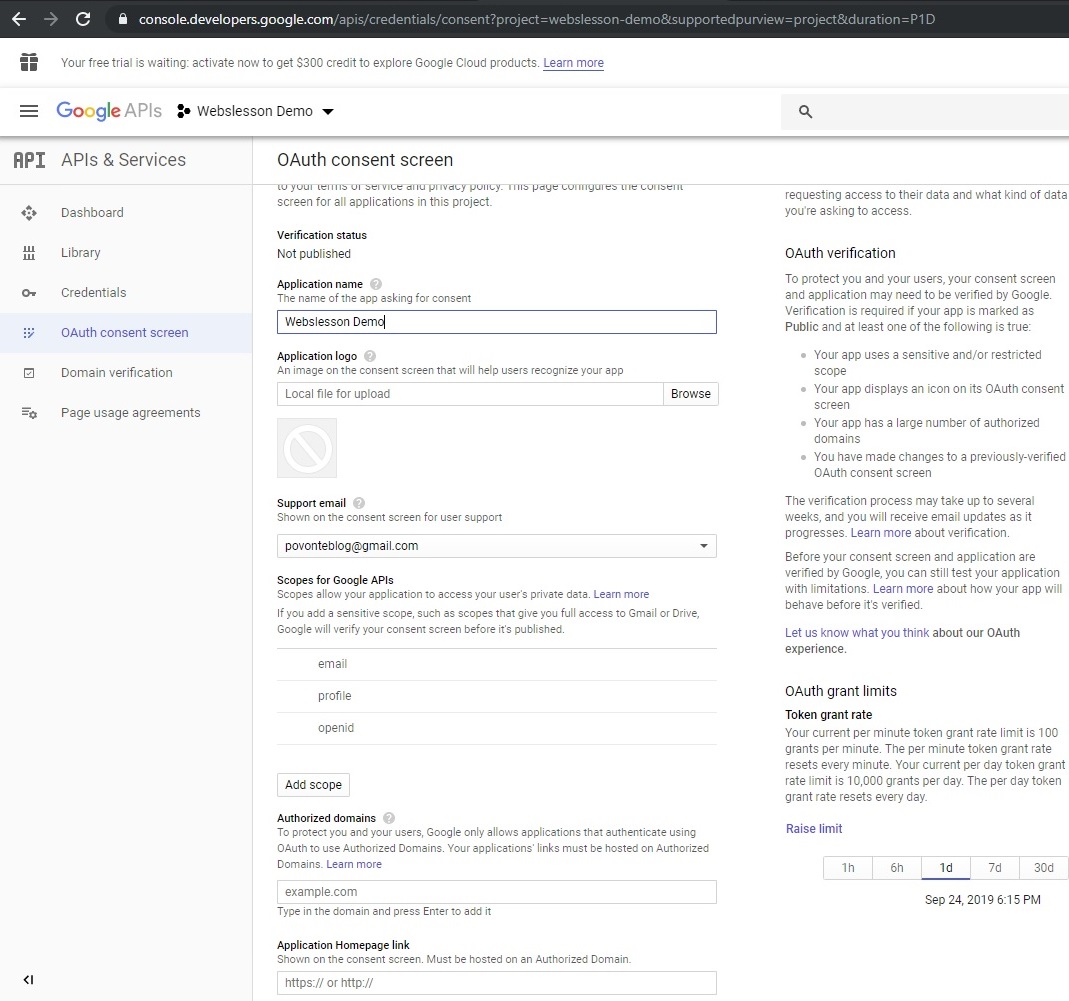
5 - After click on OAuth consent screen, then after new page has been load in browser, and here we can see two User Type option, and from that option we have to select External and click on Create button.


6 - Once we have click on Create button, then web page has redirect to new page, and on this page, we have to define Application Name and after this click on Save button.


7 - When we have click on Save button, then web page has redirect to this page. Here we can see our application details. Next we have to click on Credentials link at the left side menu.


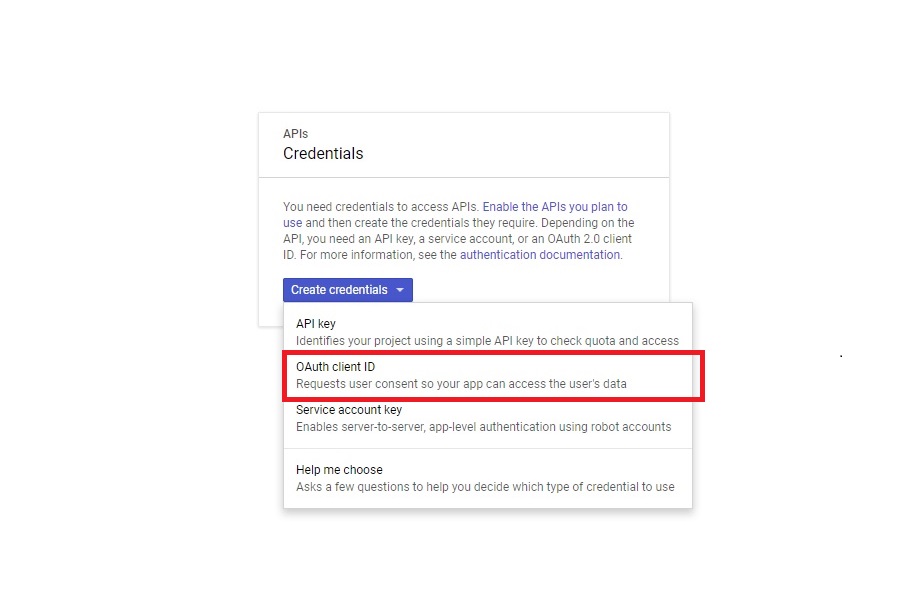
8 - After click on Credentials link, then Credentials web page has been load in browser. And here we have to click on CREATE CREDENTIALS button.


9 - Once we have click on CREATE CREDENTIALS button, then one dropdown has been appear on web page with four option. And from that option, we have to select OAuth client ID link.


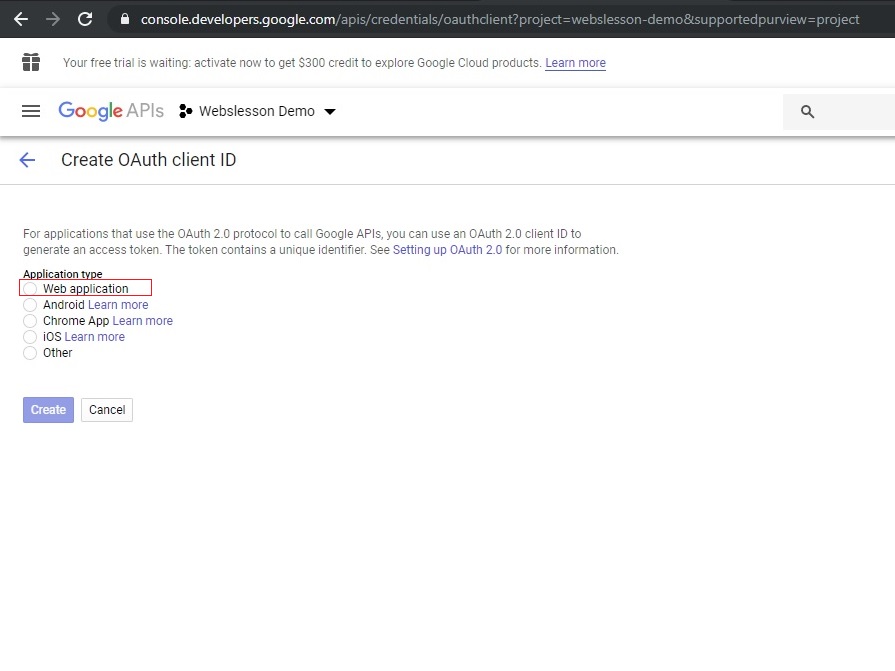
10 - When we have click on OAuth client ID option, then one new page has been load in browser and here we have to define Application Type from different option. So, from that option, we have to select Web Application.


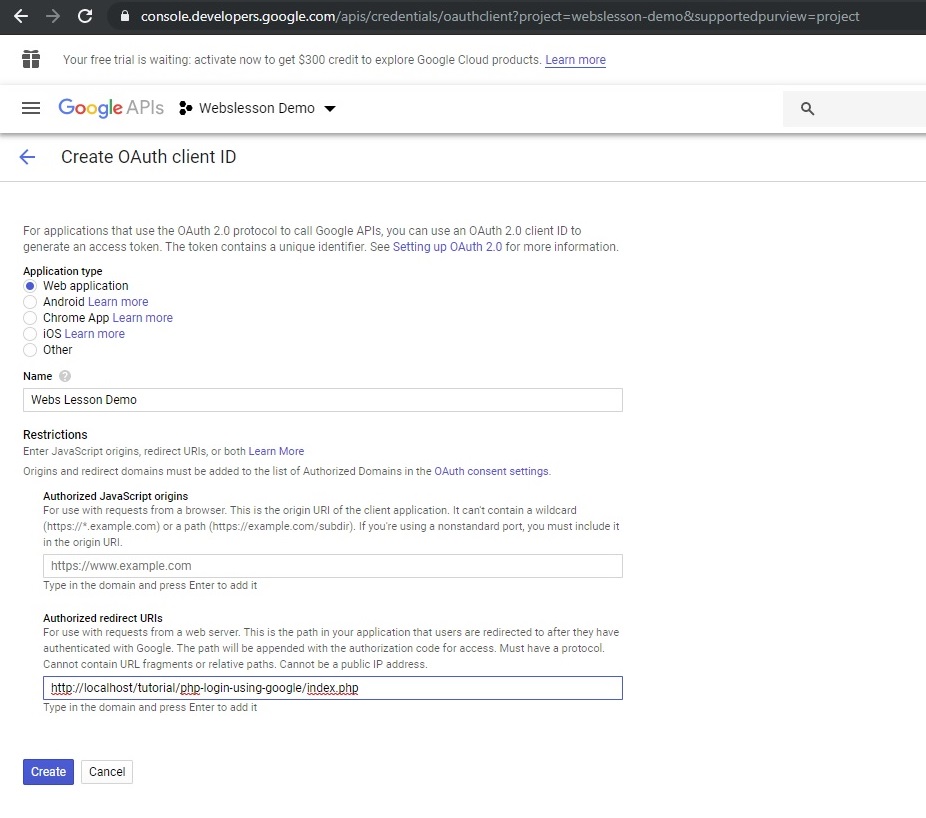
11 - Once we have select Web Application, then below that field new field has been appear and in that field, we have to enter Name field details and define Authorized redirect Uris. This is for use with request from server, and lastly we have to click on Create button.


12 - Once we have click on Create button, then our Application has been register, and then after new page has been load with our application Client ID and Client secret key will appear on web page. We have to use both key in Codeigniter framework for make Login using Google Account.


2 - Download Google API php client library


Once we have get Google Client ID and Client Secret key, so next we have to download Google API Client Library for PHP script. So for this, first we have go to command prompt in which we have already install Composer command, and after this we have go to library folder of codeigniter framework in which we have to download library and run following command.


composer require google/apiclient:"^2.0"


This command will download Google API Client Library for PHP language in your define directory. Next we have proceed for write code in Codeigniter framework.

3 - Define Autoload library


In Codeigniter framework, we have to first define autoload library like database and session, so once we have define library, then we have do not want to again and again load in every method. For this we have to open application/config/autoload.php file.


$autoload['libraries'] = array('database','session');


4 - Define Base Url of Codeigniter Application


In Next step we have to define base url of your Codeigniter application. This is root url of you codeigniter application. For define Base url, we have to open application/config/config.php and write base url of your application.

$config['base_url'] = 'http://localhost/tutorial/codeigniter/';


5 - Make Database connection


Once we have define base url, next we want to make Msyql database connection. For this we have to open application/config/database.php and in that file we have to define database configuration.


$db['default'] = array(
 'dsn' => '',
 'hostname' => 'localhost',
 'username' => 'root',
 'password' => '',
 'database' => 'codeigniter_chat',
 'dbdriver' => 'mysqli',
 'dbprefix' => '',
 'pconnect' => FALSE,
 'db_debug' => (ENVIRONMENT !== 'production'),
 'cache_on' => FALSE,
 'cachedir' => '',
 'char_set' => 'utf8',
 'dbcollat' => 'utf8_general_ci',
 'swap_pre' => '',
 'encrypt' => FALSE,
 'compress' => FALSE,
 'stricton' => FALSE,
 'failover' => array(),
 'save_queries' => TRUE
);


6 - Create Controller


In Codeigniter framework, controller is used for handle http request. In Codeigniter framework controller class file has been store under application/controllers folder Here we have create controller with Google_login.php file name. In this controller here we have make following method.

__construct() - This is magic function code will be executed every time, when object of this class has been created.

login() - This method will communicate with Google Login Api by using Google API client library for PHP script. In this method we to set ClientID, ClientSecret key and Redirect Uri which we have to define at the time creating credential process. Once this all has been set then we can send login request to Google server, then from server this method will received access token and based on that token user can login into website and get user data. If user data already store in our database, then this function will update data, otherwise it will insert user data in our database.

logout() - This method will received request from user to get permission for logout from system. In this method it has simply delete data from session variable and it will redirect page to login.

application/controllers/Google_login.php

<?php
defined('BASEPATH') OR exit('No direct script access allowed');

class Google_login extends CI_Controller {

 public function __construct()
 {
  parent::__construct();
  $this->load->model('google_login_model');
 }

 function login()
 {
  include_once APPPATH . "libraries/vendor/autoload.php";

  $google_client = new Google_Client();

  $google_client->setClientId(''); //Define your ClientID

  $google_client->setClientSecret(''); //Define your Client Secret Key

  $google_client->setRedirectUri(''); //Define your Redirect Uri

  $google_client->addScope('email');

  $google_client->addScope('profile');

  if(isset($_GET["code"]))
  {
   $token = $google_client->fetchAccessTokenWithAuthCode($_GET["code"]);

   if(!isset($token["error"]))
   {
    $google_client->setAccessToken($token['access_token']);

    $this->session->set_userdata('access_token', $token['access_token']);

    $google_service = new Google_Service_Oauth2($google_client);

    $data = $google_service->userinfo->get();

    $current_datetime = date('Y-m-d H:i:s');

    if($this->google_login_model->Is_already_register($data['id']))
    {
     //update data
     $user_data = array(
      'first_name' => $data['given_name'],
      'last_name'  => $data['family_name'],
      'email_address' => $data['email'],
      'profile_picture'=> $data['picture'],
      'updated_at' => $current_datetime
     );

     $this->google_login_model->Update_user_data($user_data, $data['id']);
    }
    else
    {
     //insert data
     $user_data = array(
      'login_oauth_uid' => $data['id'],
      'first_name'  => $data['given_name'],
      'last_name'   => $data['family_name'],
      'email_address'  => $data['email'],
      'profile_picture' => $data['picture'],
      'created_at'  => $current_datetime
     );

     $this->google_login_model->Insert_user_data($user_data);
    }
    $this->session->set_userdata('user_data', $user_data);
   }
  }
  $login_button = '';
  if(!$this->session->userdata('access_token'))
  {
   $login_button = '<a href="'.$google_client->createAuthUrl().'"><img src="'.base_url().'asset/sign-in-with-google.png" /></a>';
   $data['login_button'] = $login_button;
   $this->load->view('google_login', $data);
  }
  else
  {
   $this->load->view('google_login', $data);
  }
 }

 function logout()
 {
  $this->session->unset_userdata('access_token');

  $this->session->unset_userdata('user_data');

  redirect('google_login/login');
 }
 
}
?>


7 - Create Model


Model class generally used for database related operation. In codeigniter framework, Model class has been store under application/models folder. Here we have create Models class with Google_login_model.php file. In this class we have make following method.

Is_already_register($id) - This method has been check user with $id variable value is already store in chat_user table or not. If user data is available then it will return true, otherwise it will return false.

Update_user_data($data, $id) - This method will update chat_user table data based on value of $id variable value.

Insert_user_data($data) - This method will insert data into chat_user table.

application/models/Google_login_model.php

<?php
class Google_login_model extends CI_Model
{
 function Is_already_register($id)
 {
  $this->db->where('login_oauth_uid', $id);
  $query = $this->db->get('chat_user');
  if($query->num_rows() > 0)
  {
   return true;
  }
  else
  {
   return false;
  }
 }

 function Update_user_data($data, $id)
 {
  $this->db->where('login_oauth_uid', $id);
  $this->db->update('chat_user', $data);
 }

 function Insert_user_data($data)
 {
  $this->db->insert('chat_user', $data);
 }
}
?>


8 - Create View file


This file is used for display html output in browser. In Codeigniter framework view file has been store in application/views folder. Here we have create views file with google_login.php name.

application/views/google_login.php

<html>
 <head>
  <meta http-equiv="Content-Type" content="text/html; charset=utf-8" />
  <title>Login with Google in Codeigniter</title>
  <meta content='width=device-width, initial-scale=1, maximum-scale=1' name='viewport'/>
  <script src="https://ajax.googleapis.com/ajax/libs/jquery/2.1.3/jquery.min.js"></script>
  <script src="https://maxcdn.bootstrapcdn.com/bootstrap/3.3.6/js/bootstrap.min.js"></script>
  <link href="https://maxcdn.bootstrapcdn.com/bootstrap/3.3.6/css/bootstrap.min.css" rel="stylesheet" />
  
 </head>
 <body>
  <div class="container">
   <br />
   <h2 align="center">Login using Google Account with Codeigniter</h2>
   <br />
   <div class="panel panel-default">
   <?php
   if(!isset($login_button))
   {

    $user_data = $this->session->userdata('user_data');
    echo '<div class="panel-heading">Welcome User</div><div class="panel-body">';
    echo '<img src="'.$user_data['profile_picture'].'" class="img-responsive img-circle img-thumbnail" />';
    echo '<h3><b>Name : </b>'.$user_data["first_name"].' '.$user_data['last_name']. '</h3>';
    echo '<h3><b>Email :</b> '.$user_data['email_address'].'</h3>';
    echo '<h3><a href="'.base_url().'google_login/logout">Logout</h3></div>';
   }
   else
   {
    echo '<div align="center">'.$login_button . '</div>';
   }
   ?>
   </div>
  </div>
 </body>
</html>


So, this is complete step by step process for How to implement Codeigniter Login application by using Google Account. If you have still not understand code, then you can also view video tutorial of this post also which you can find at the top of this post.

Thursday, 10 October 2019

How to Implement Login using Facebook Account in PHP


This is one more post on How to make Social Login in PHP. In this post, we will use Facebook account login allow to user for get access into our website. Here you can find process for login with Facebook PHP SDK library. In this tutorial, we have use latest Facebook API SDK library for login with PHP script.

In most of website, you can generally find registration form for sign up for get access into website, but most of the user is not interested in filling large website registration form. At this time if you have allow user to login or register with Facebook login, then user has not required to filling large registration form and they can easily get access into website by login using Facebook account. In this blog, we will learn you how to implement login with Facebook account in your PHP website.

Here we have use Facebook PHP SDK library that allows to access Facebook API from your PHP web application. By using this library you can simply integrate the PHP Login with Facebook Account using Facebook SDK library. Here you can find process for how to make User login and registration system with Facebook using PHP and display user profile data on web page.


Now we have get started with the latest version of Facebook SDK v5.x and your system must required following configuration.

  • PHP version must be greater than 5.4.
  • mbstring extension must be enable in your server.

Create Facebook APP


For get access Facebook API, first you need to create Facebook app and then get App ID and App Secret which you can use at the time of calling Facebook API. Below you can find step by step process for create Facebook app in Facebook developers dashboard.

1. First go to https://developers.facebook.com/ facebook developers page and login with your Facebook Account.

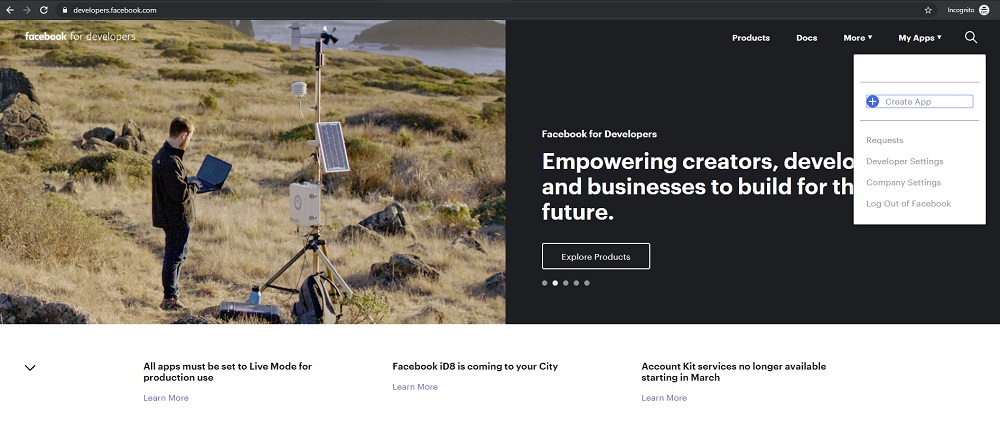
2. After login into Facebook account, now click on My apps menu and in this click on Create App link.


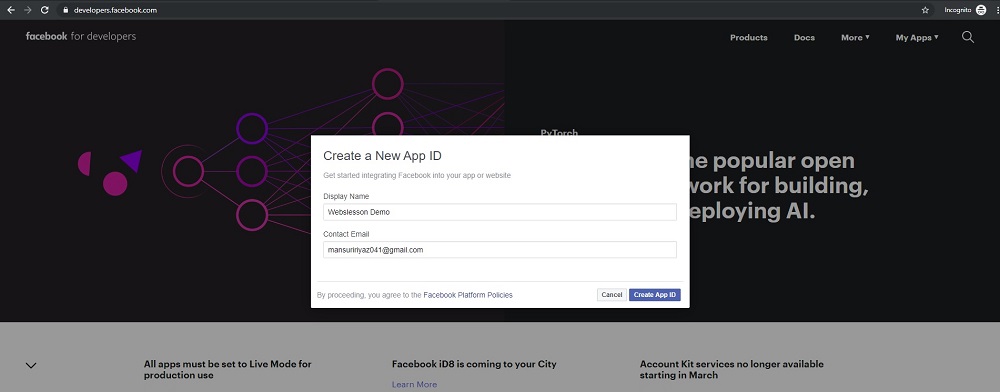
3. After click on Create App link, then modal has pop up on web page, here you have to define App Display Name details and click on Create App ID button.


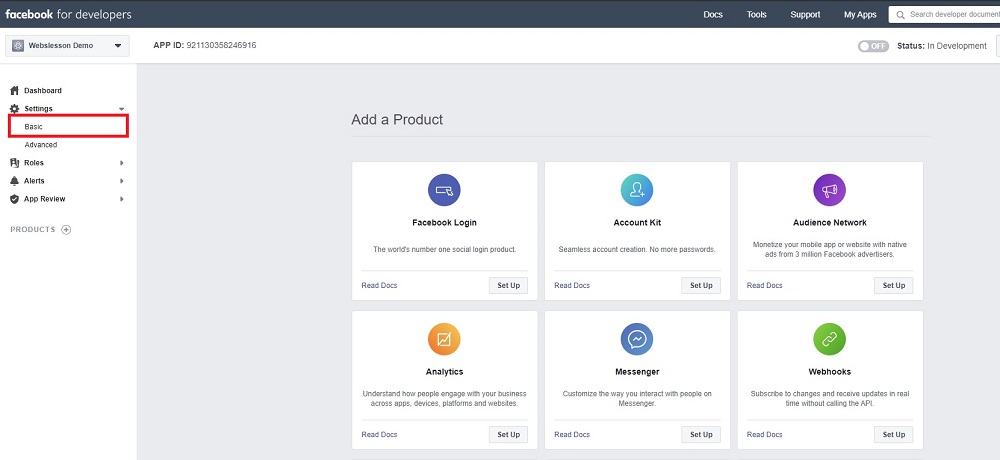
4. Now navigate to Setting » Basic link.


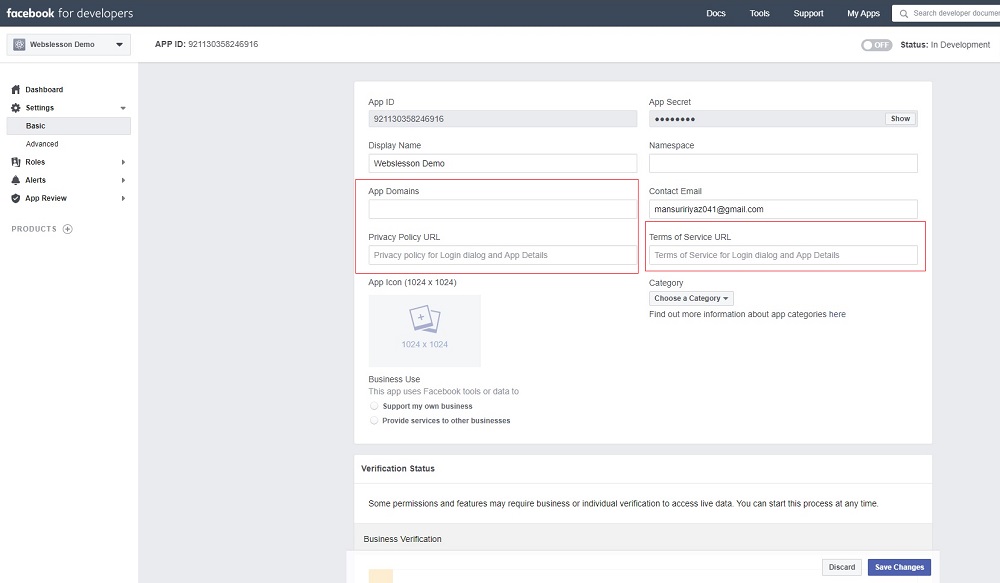
5. Here you have to specify App Domains, Privacy Policy URL, Terms of Service URL and select Category. Lastly, you have to click on Save Changes button.


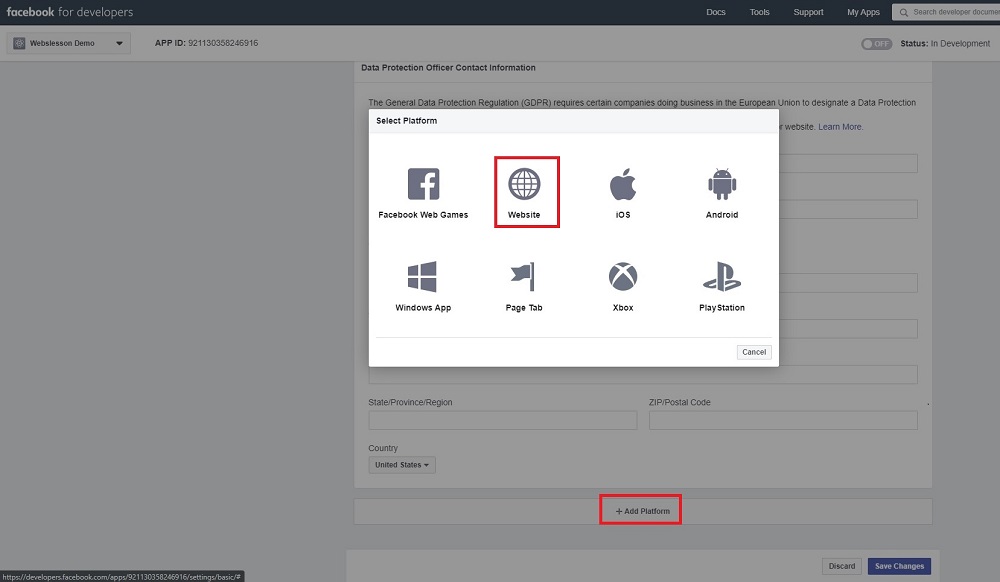
6. Now you have to navigate to Add a Product page by click on plus button. So, modal will pop up and here you have to select Website.


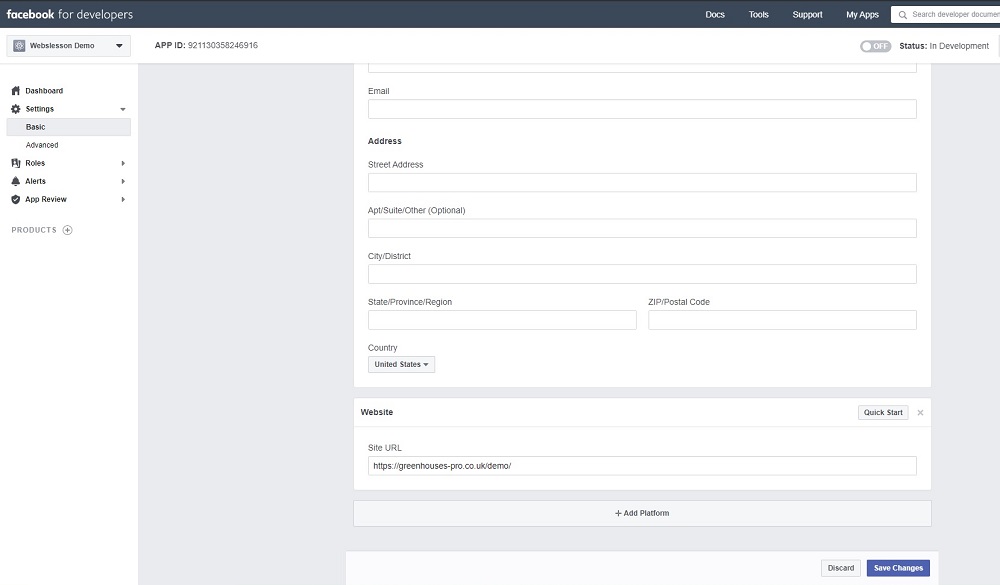
7. After select Website option, then Website field has been appear on web page, and here you have to define your app Site URL.


8. Now you have to add product, so go to Dashboard link and on you have to Set up Facebook Login product.

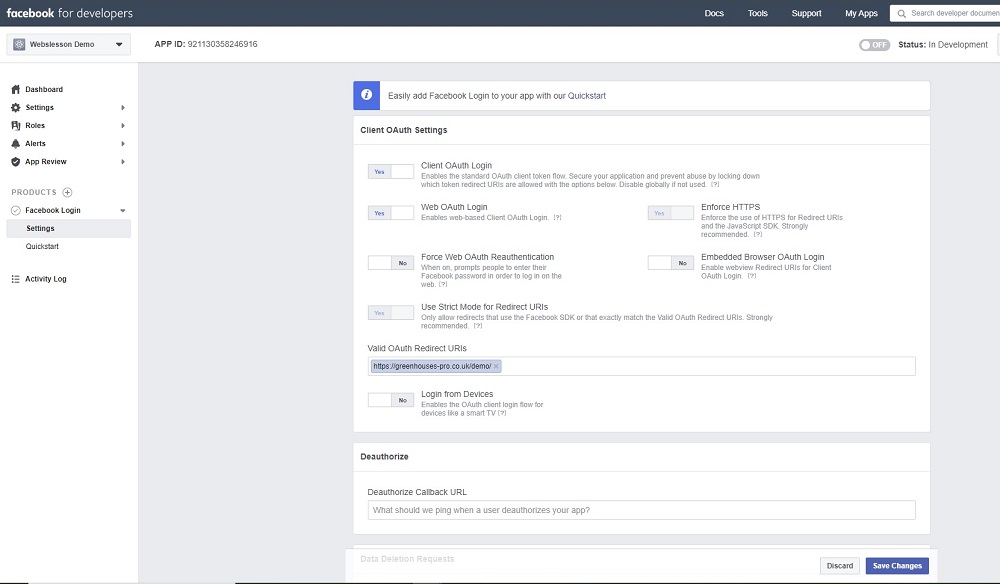
9. Once you have Set up Facebook Login product, then new web page has been load, here you have to define Valid OAuth Redirect URIs and click on Save Changes button.


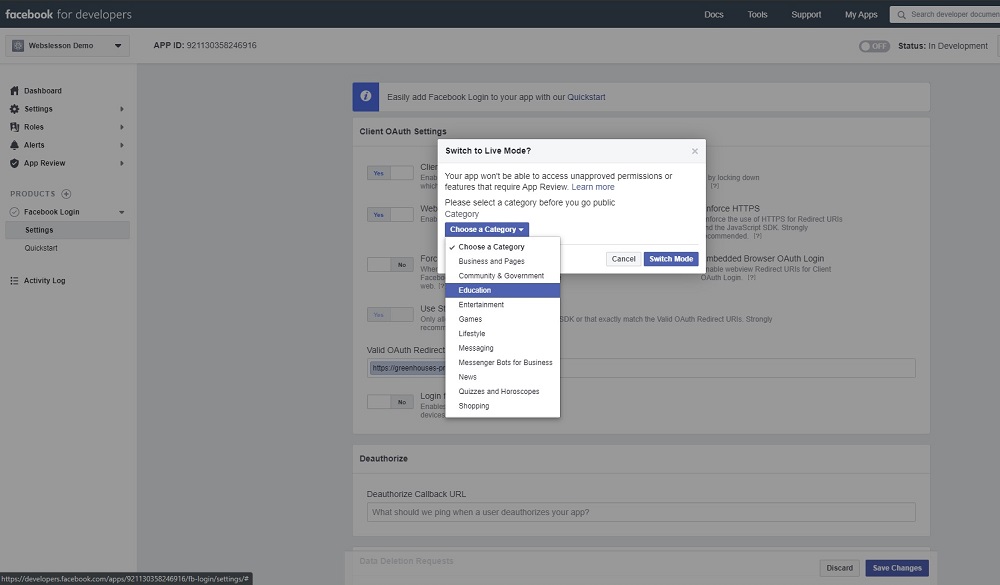
10. You have change your status from In Development mode to Live mode, for this you have to click on Off button, after click on Off button, then modal will pop up and here you have to select Category and click on Switch Mode button. After click on Switch Mode button, your App will be Live this is required for get profile data from Facebook API.


Download Facebook SDK for PHP


After this we want to download Facebook SDK for PHP library. For this we have to open Command Prompt editor. In this first you have to go to directory in which you want to download Facebook SDK for PHP. After this you have to run Composer command, this is because we have use Composer dependecy manager for download Facebook SDK for PHP. After this you have to run following command.


composer require facebook/graph-sdk


This command will download Facebook SDK library for PHP in define directory.

config.php


In this file first we need to add autoload.php file of Facebook SDK library for PHP using require_once statement.

After this, we have to check, session variable started or not by using PHP session_id() function.

Now we have to called Facebook API, here we have to define app_id and app_secret key which we have to get at the time of create Facebook App. Here we have to define default_graph_version also.


<?php

require_once 'vendor/autoload.php';

if (!session_id())
{
    session_start();
}

// Call Facebook API

$facebook = new \Facebook\Facebook([
  'app_id'      => '921130358246916',
  'app_secret'     => '8d382dc63a190925664594ef090b8a78',
  'default_graph_version'  => 'v2.10'
]);

?>


index.php


In this file first we need to add config.php file by using include statement.

After this we want to get redirect login helper, for this here we have use getRedirectLoginHelper() method.

Now we want to check any $_GET['code'] variable value has been received or not, if received that means user has login using Facebook account and display profile data on web page, otherwise display link for Login using Facebook account.

Suppose it has received $_GET['code'] variable value, then we want to check access token has been store in $_SESSION variable or not if it is already store in $_SESSION variable, then that value has been store in local variable.

But suppose access token is not get from $_SESSION variable, then we need to get by using getAccessToken() method and store in local variable and then after store in $_SESSION variable.

After getting access token now we want to set the default access token to use with request by using setDefaultAccessToken() method.

Now we have proceed for get profile data, for this here we have use get() method and under this method we have to define profile fields like name, email etc and in second argument we have to define access token value.

Lastly, for get user profile data, here we have use getGraphUser(), this method will creating a graph user collection.

This way we can get data from Facebook API and store in $_SESSION variable.

For create link for login using Facebook account, for this here we have use getLoginUrl() method, this method will send the user in order to login to Facebook. In this method you have to define redirect url and permission array.

So, below you can source code for get login with Facebook account using PHP and display profile data on web page.


<?php

//index.php

include('config.php');

$facebook_output = '';

$facebook_helper = $facebook->getRedirectLoginHelper();

if(isset($_GET['code']))
{
 if(isset($_SESSION['access_token']))
 {
  $access_token = $_SESSION['access_token'];
 }
 else
 {
  $access_token = $facebook_helper->getAccessToken();

  $_SESSION['access_token'] = $access_token;

  $facebook->setDefaultAccessToken($_SESSION['access_token']);
 }

 $_SESSION['user_id'] = '';
 $_SESSION['user_name'] = '';
 $_SESSION['user_email_address'] = '';
 $_SESSION['user_image'] = '';

 $graph_response = $facebook->get("/me?fields=name,email", $access_token);

 $facebook_user_info = $graph_response->getGraphUser();

 if(!empty($facebook_user_info['id']))
 {
  $_SESSION['user_image'] = 'http://graph.facebook.com/'.$facebook_user_info['id'].'/picture';
 }

 if(!empty($facebook_user_info['name']))
 {
  $_SESSION['user_name'] = $facebook_user_info['name'];
 }

 if(!empty($facebook_user_info['email']))
 {
  $_SESSION['user_email_address'] = $facebook_user_info['email'];
 }
 
}
else
{
 // Get login url
    $facebook_permissions = ['email']; // Optional permissions

    $facebook_login_url = $facebook_helper->getLoginUrl('https://greenhouses-pro.co.uk/demo/', $facebook_permissions);
    
    // Render Facebook login button
    $facebook_login_url = '<div align="center"><a href="'.$facebook_login_url.'"><img src="php-login-with-facebook.gif" /></a></div>';
}


?>
<html>
 <head>
  <meta http-equiv="Content-Type" content="text/html; charset=utf-8" />
  <title>PHP Login using Google Account</title>
  <meta content='width=device-width, initial-scale=1, maximum-scale=1' name='viewport'/>
  <script src="https://ajax.googleapis.com/ajax/libs/jquery/2.1.3/jquery.min.js"></script>
  <script src="https://maxcdn.bootstrapcdn.com/bootstrap/3.3.6/js/bootstrap.min.js"></script>
  <link href="https://maxcdn.bootstrapcdn.com/bootstrap/3.3.6/css/bootstrap.min.css" rel="stylesheet" />
  
 </head>
 <body>
  <div class="container">
   <br />
   <h2 align="center">PHP Login using Google Account</h2>
   <br />
   <div class="panel panel-default">
    <?php 
    if(isset($facebook_login_url))
    {
     echo $facebook_login_url;
    }
    else
    {
     echo '<div class="panel-heading">Welcome User</div><div class="panel-body">';
     echo '<img src="'.$_SESSION["user_image"].'" class="img-responsive img-circle img-thumbnail" />';
     echo '<h3><b>Name :</b> '.$_SESSION['user_name'].'</h3>';
     echo '<h3><b>Email :</b> '.$_SESSION['user_email_address'].'</h3>';
     echo '<h3><a href="logout.php">Logout</h3></div>';
    }
    ?>
   </div>
  </div>
 </body>
</html>


logout.php


<?php

//logout.php

session_destroy();

header('location:index.php');

?>


So, from this post you can learn how to allow user to login using Facebook account in PHP website, We hope you have learn login with Facebook in PHP web application from this post.

Friday, 27 September 2019

How to make Login with Google Account using PHP


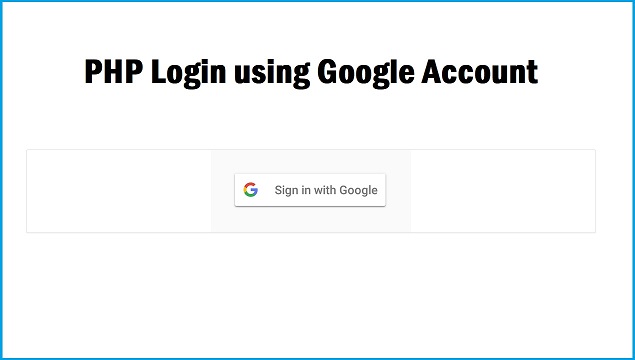
Now a days in the world of internet, as we know social media is an very import part of any web based application. So if your web application has provide feature like login with social media, then it will be gaining more new users to your web application. So, in this post we have share tutorial on how to login or sign in or register with Google Account in your PHP web application. Here we will make system in which user can login with their Google account into your website.
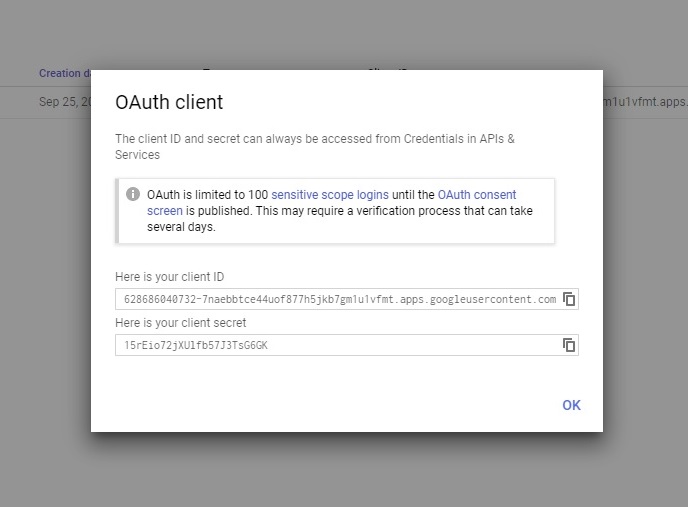
For login with Google Account using PHP, Google has provide Google OAuth API, which is very easy and helpful to you for implement login using Google account into your Website. Google Login API has provide rights to user to login into the website by using their Google account credential without register on that particular website. By using this feature, your website will gain more subscriber, this is because in current days most of all users have a Google Account, so they can login with their Google Account without sign in on your website.

In this tutorial, we will use Google OAuth Login API, this API give permission to users to login with their existing Google accounts to your website. Below you can find how to integrate Google Login API in your PHP website and you can also find the process how to get API key and how to integrate Google Client Library in your existing PHP library for Login.


Get Google API Credential


First we need to get Google API keys, for this first you have Google Account. So, login into your Google Account and follow below step.

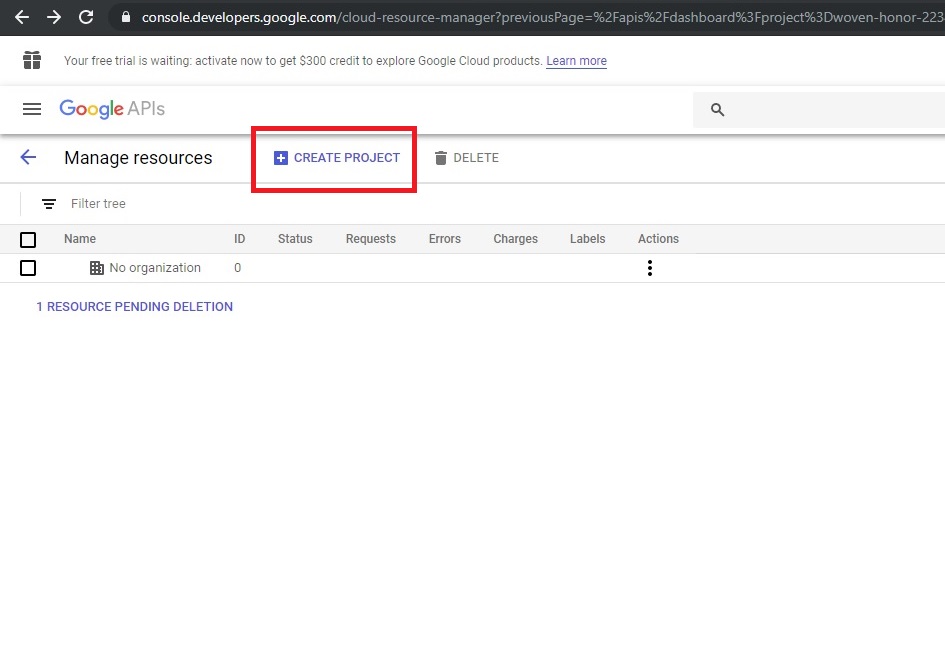
1 - Go to https://console.developers.google.com/ this link.
2 - After this click on Create New Project link for create new project.


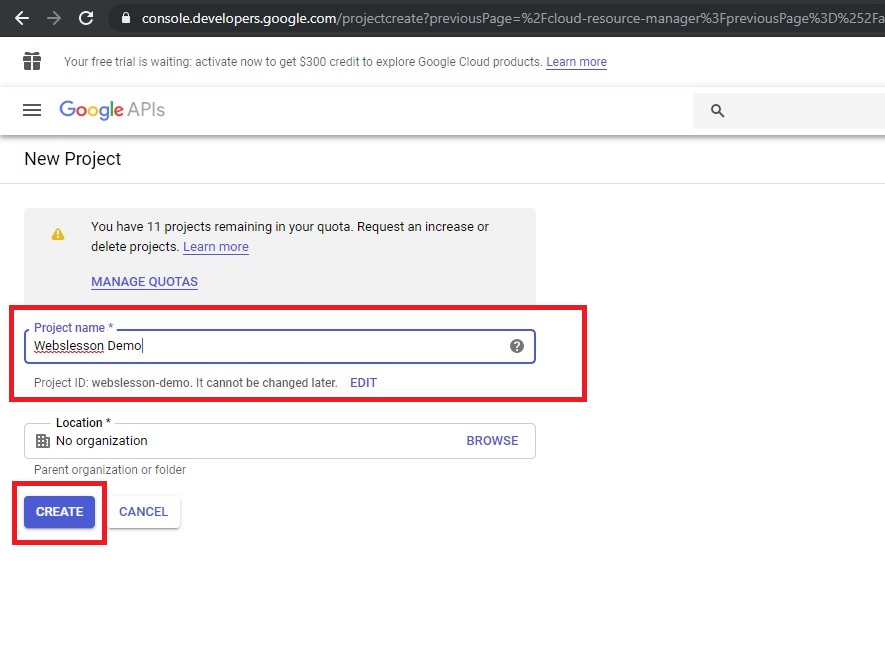
3 - Enter Project Name and click on Create button.

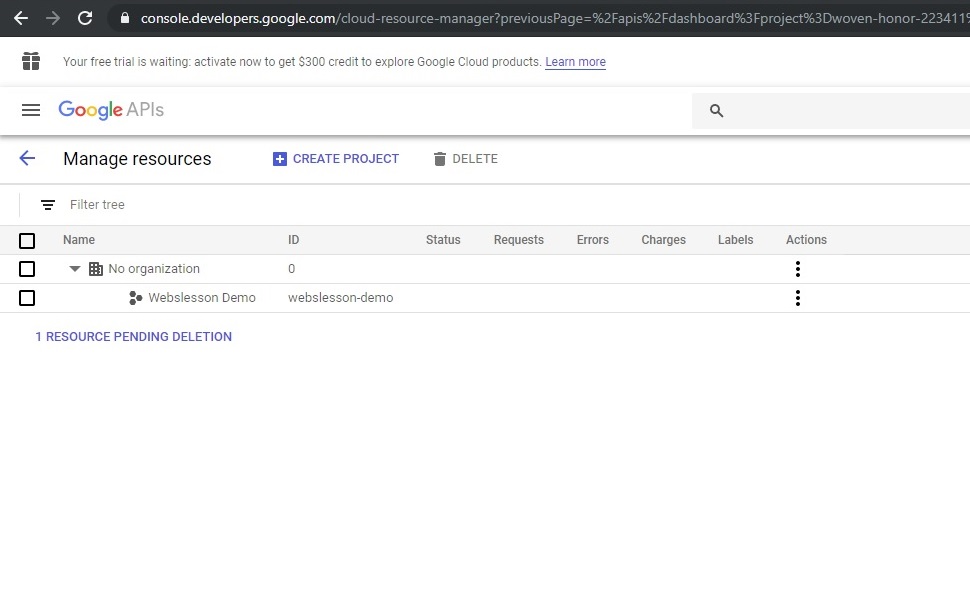
4 - Once you have create new project then you can see your project list on web page.

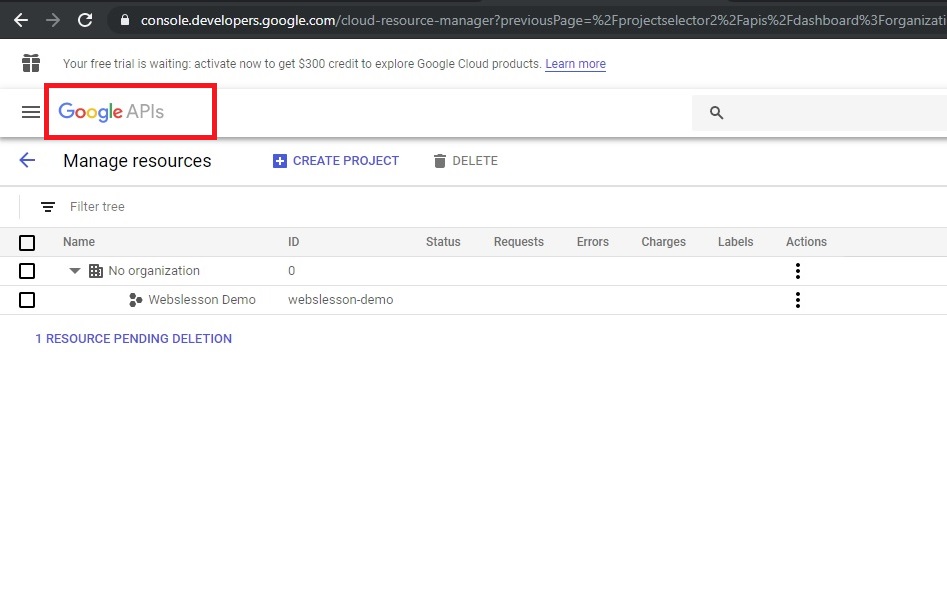
5 -After this click on Google API logo for go to home page.


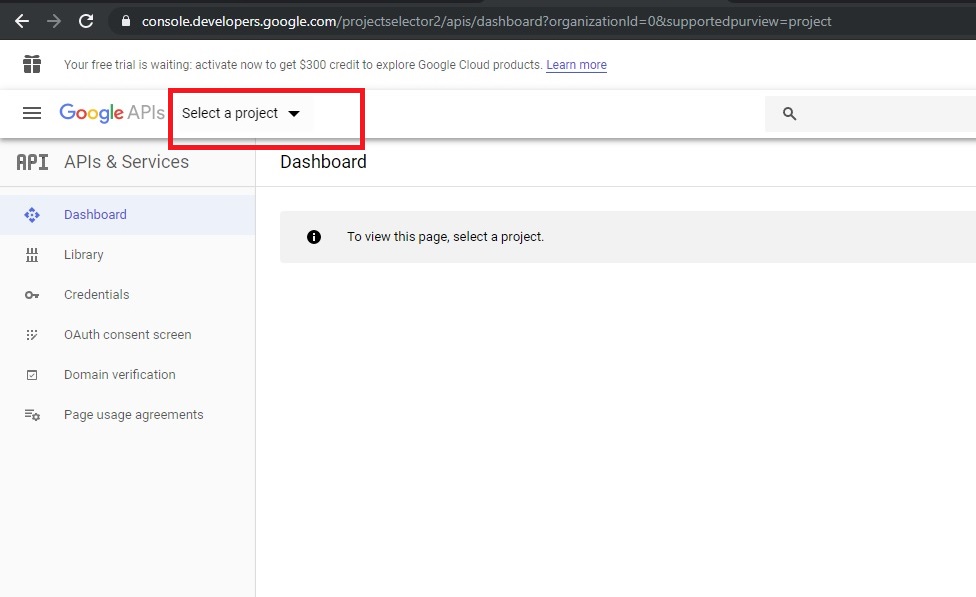
6 - Once you have redirect to home page then select project from the project select box.


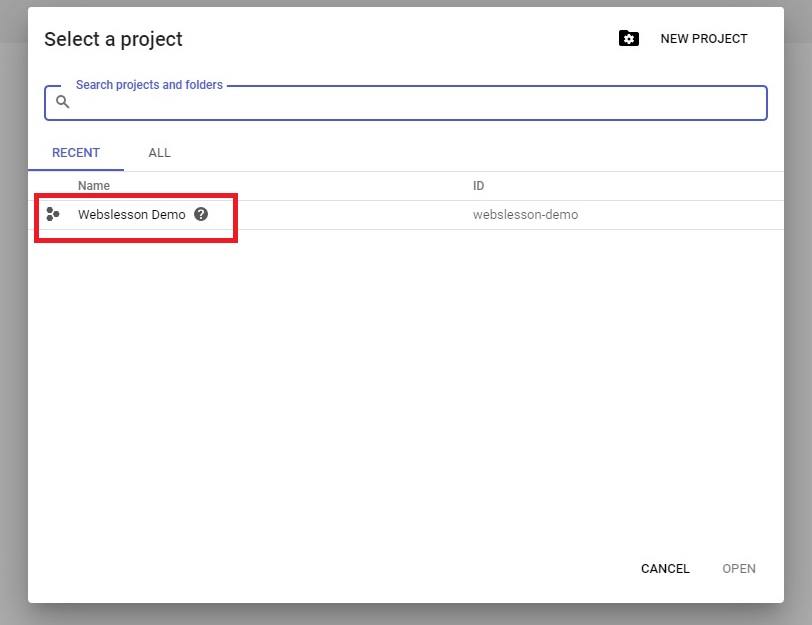
7 - After click on project select box, then one modal will popup and under this you can find list of project, so select your project.


8 - Now from left menu, you have to click on OAuth consent screen.
9 - Once you have click on OAuth consent screen, then one page will load, here you have to define application name and after this click on save button.


10 - When you have click on save button, then after page will redirect another page, and here you have to click on Create credential button, so one drop down menu will appear and from this you have to select OAuth client ID.


11 - After click on OAuth client ID menu then you have redirect to another page, and here you can find different Application type.


12 - From different Application type option, you have to select Web application. Once you have select Web application option, then one form will appear on web page. Here you have to define Name and you have also define Authorized redirect URIs field and lastly click on Create button.


13 - Once you have click on create button, then you can get your Client ID and your client secret key. You have to copy both key for future use for implement Login using Google account using PHP.


Download Google API Client Library for PHP


After getting Google API key, now we need to download Google API Client Library for PHP. For this we have to go command prompt and first type composer command, after this we need to run following command.


composer require google/apiclient:"^2.0"


This command will download Google API Client Library for PHP in your define directory. Now we have proceed for PHP code for how to use Google API Client Library for login using Google account with PHP.

config.php


<?php

//config.php

//Include Google Client Library for PHP autoload file
require_once 'vendor/autoload.php';

//Make object of Google API Client for call Google API
$google_client = new Google_Client();

//Set the OAuth 2.0 Client ID
$google_client->setClientId('1034286712318-kv0gapfqro1aijq84ed72r4aqqs8nan8.apps.googleusercontent.com');

//Set the OAuth 2.0 Client Secret key
$google_client->setClientSecret('Dzq5Xd3olizoZkKjk_SJCWQ1');

//Set the OAuth 2.0 Redirect URI
$google_client->setRedirectUri('http://localhost/tutorial/php-login-using-google-demo/index.php');

//
$google_client->addScope('email');

$google_client->addScope('profile');

//start session on web page
session_start();

?>


index.php


<?php

//index.php

//Include Configuration File
include('config.php');

$login_button = '';

//This $_GET["code"] variable value received after user has login into their Google Account redirct to PHP script then this variable value has been received
if(isset($_GET["code"]))
{
 //It will Attempt to exchange a code for an valid authentication token.
 $token = $google_client->fetchAccessTokenWithAuthCode($_GET["code"]);

 //This condition will check there is any error occur during geting authentication token. If there is no any error occur then it will execute if block of code/
 if(!isset($token['error']))
 {
  //Set the access token used for requests
  $google_client->setAccessToken($token['access_token']);

  //Store "access_token" value in $_SESSION variable for future use.
  $_SESSION['access_token'] = $token['access_token'];

  //Create Object of Google Service OAuth 2 class
  $google_service = new Google_Service_Oauth2($google_client);

  //Get user profile data from google
  $data = $google_service->userinfo->get();

  //Below you can find Get profile data and store into $_SESSION variable
  if(!empty($data['given_name']))
  {
   $_SESSION['user_first_name'] = $data['given_name'];
  }

  if(!empty($data['family_name']))
  {
   $_SESSION['user_last_name'] = $data['family_name'];
  }

  if(!empty($data['email']))
  {
   $_SESSION['user_email_address'] = $data['email'];
  }

  if(!empty($data['gender']))
  {
   $_SESSION['user_gender'] = $data['gender'];
  }

  if(!empty($data['picture']))
  {
   $_SESSION['user_image'] = $data['picture'];
  }
 }
}

//This is for check user has login into system by using Google account, if User not login into system then it will execute if block of code and make code for display Login link for Login using Google account.
if(!isset($_SESSION['access_token']))
{
 //Create a URL to obtain user authorization
 $login_button = '<a href="'.$google_client->createAuthUrl().'"><img src="sign-in-with-google.png" /></a>';
}

?>
<html>
 <head>
  <meta http-equiv="Content-Type" content="text/html; charset=utf-8" />
  <title>PHP Login using Google Account</title>
  <meta content='width=device-width, initial-scale=1, maximum-scale=1' name='viewport'/>
  <script src="https://ajax.googleapis.com/ajax/libs/jquery/2.1.3/jquery.min.js"></script>
  <script src="https://maxcdn.bootstrapcdn.com/bootstrap/3.3.6/js/bootstrap.min.js"></script>
  <link href="https://maxcdn.bootstrapcdn.com/bootstrap/3.3.6/css/bootstrap.min.css" rel="stylesheet" />
  
 </head>
 <body>
  <div class="container">
   <br />
   <h2 align="center">PHP Login using Google Account</h2>
   <br />
   <div class="panel panel-default">
   <?php
   if($login_button == '')
   {
    echo '<div class="panel-heading">Welcome User</div><div class="panel-body">';
    echo '<img src="'.$_SESSION["user_image"].'" class="img-responsive img-circle img-thumbnail" />';
    echo '<h3><b>Name :</b> '.$_SESSION['user_first_name'].' '.$_SESSION['user_last_name'].'</h3>';
    echo '<h3><b>Email :</b> '.$_SESSION['user_email_address'].'</h3>';
    echo '<h3><a href="logout.php">Logout</h3></div>';
   }
   else
   {
    echo '<div align="center">'.$login_button . '</div>';
   }
   ?>
   </div>
  </div>
 </body>
</html>


logout.php


<?php

//logout.php

include('config.php');

//Reset OAuth access token
$google_client->revokeToken();

//Destroy entire session data.
session_destroy();

//redirect page to index.php
header('location:index.php');

?>


So, this is complete process for How to use Google API Client library for PHP Login by using Google account.